Multi Monitor Setup: A Comprehensive Guide
Imagine you’re sitting at your desk, overwhelmed by open windows and the constant need to switch between applications. You’ve heard about the productivity boost a dual monitor setup can offer, and you’re ready to explore this new frontier. But where to begin? You might wonder how to get dual monitors to work seamlessly or how to setup a second monitor wirelessly without cluttering your workspace with cables. Fear not! This guide will walk you through the essentials of a multi monitor setup, optimizing your workspace with ease and efficiency.
Why Choose a Multi Monitor Setup?
Opting for a multi monitor setup can significantly enhance your productivity by allowing simultaneous access to multiple applications. Imagine editing a document while referencing a spreadsheet or having a video conference alongside your presentation notes. This setup not only increases your visual workspace but also reduces the time spent flipping between tasks. Professionals across various fields, from graphic design to finance, find that having multiple displays streamlines their workflow and increases output.
Moreover, the flexibility a dual screen configuration provides is unmatched. Whether you prefer a vertical layout for coding or a horizontal spread for creative work, you can customize the arrangement to fit your needs. Studies have shown that this adaptability leads to improved focus and efficiency, fostering a more pleasant working environment.
How to Setup a Second Monitor Wirelessly
Setting up a second monitor without the clutter of additional cables is a liberating experience. First, ensure your devices support wireless connections. Many modern computers and monitors come equipped with technologies like Miracast or AirPlay, which facilitate wireless screen sharing. If your equipment is compatible, enable these features in your system settings.
Next, connect the devices by searching for available displays in your computer’s wireless settings. Once located, pair them to start projecting your screen. If your hardware lacks built-in support, consider investing in a wireless HDMI adapter, which offers a seamless way to add a second screen without physical connections.
Wireless setups are especially beneficial in dynamic workplaces, where flexibility and mobility are key. By minimizing wired constraints, you can easily reconfigure your workspace to meet changing needs or preferences.
How to Get Dual Monitors to Work: Troubleshooting Tips
Occasionally, you may encounter issues with your dual monitors. Common problems include one screen not displaying or persistent connectivity errors. Start by checking the cables and connections, ensuring everything is securely plugged in and powered on.
If using wireless connections, examine the network settings to ensure both devices are connected to the same network. Rebooting your devices can often resolve temporary glitches. For persistent issues, update your display drivers as outdated software can cause compatibility problems.
In some cases, adjusting the display settings in your operating system might be necessary. Navigate to your display configuration panel and select the “Extend” option to ensure both monitors function independently. This setup will allow you to drag and drop windows seamlessly across screens.
Best Practices for an Efficient Monitor Set Up
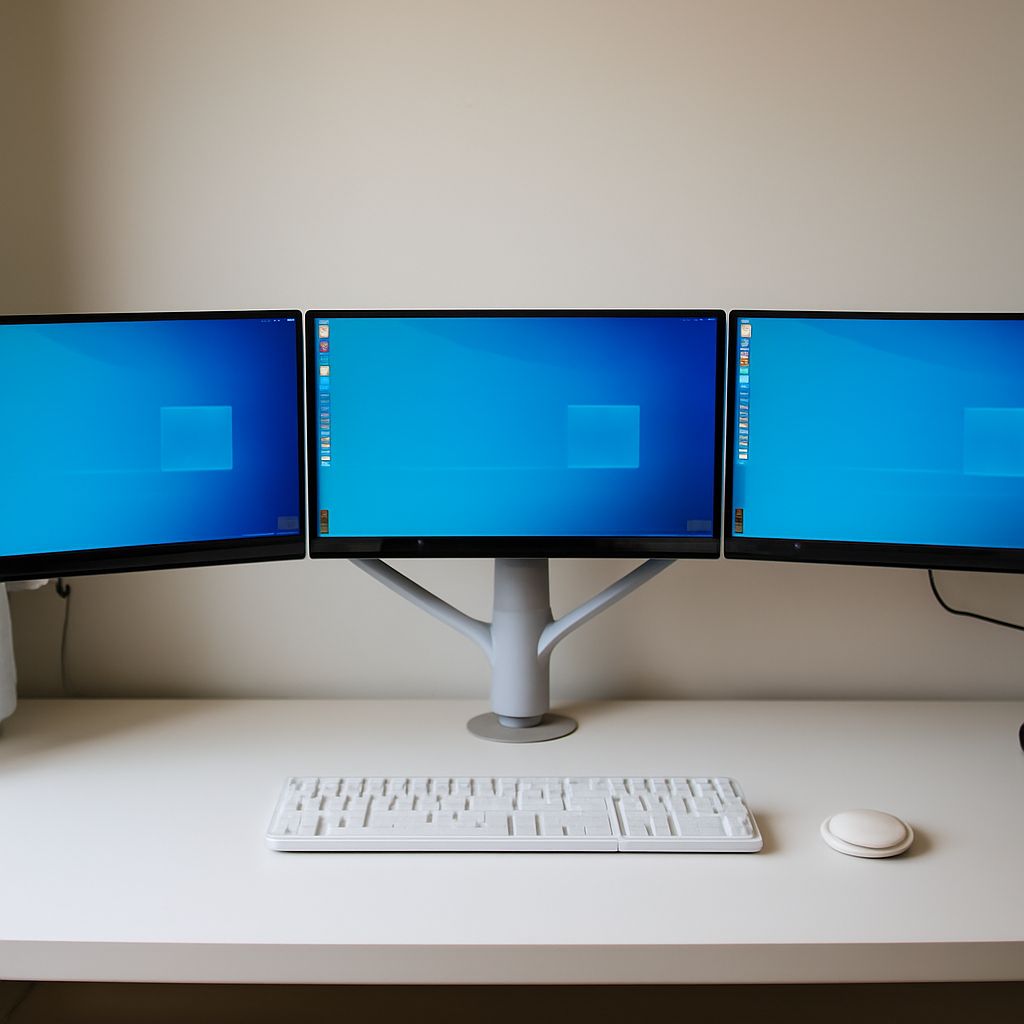
To maximize the effectiveness of your monitor set up, consider ergonomics and positioning. Place your primary monitor directly in front of you, with the secondary slightly angled. This alignment ensures minimal strain on your neck and eyes.
Adjust the height of your screens so that the top edge is at or just below eye level. This positioning encourages a neutral posture, reducing physical stress during extended work sessions. Investing in adjustable monitor arms can provide additional flexibility in arranging your screens.
Additionally, customize your taskbar and shortcuts to optimize cross-monitor navigation. By streamlining your workflow, you can reduce the cognitive load and enhance your overall productivity. Organizing your digital workspace is as crucial as the physical arrangement, ensuring that you can access your tools and information quickly and efficiently.
Pro tips recap: Embrace the power of a multi monitor setup to boost productivity. Consider wireless solutions for a cleaner workspace and troubleshoot common issues by checking connections and updating drivers. Optimize your physical and digital workspace for maximum efficiency and comfort. With the right setup, your dual monitor configuration will revolutionize your work habits.