Discord ID Lookup: How to Find and Use Discord IDs
Imagine you’re deep into a discussion on Discord, engaging with various users across servers. Suddenly, someone posts a suspicious message, and you need to identify their account quickly. To your relief, you remember the power of a Discord ID lookup. This tool is invaluable for locating users and managing interactions effectively, ensuring a safe environment for all participants.
What is a Discord ID?
A Discord ID is a unique numerical identifier assigned to every user, message, and server on the platform. Unlike usernames, which can be changed easily, these IDs remain constant, providing a permanent means of identifying an entity within Discord. This unique identifier is crucial when you’re trying to pinpoint specific users or messages, particularly in large community servers where activity is high.
Discord IDs are essential for developers and moderators who need to perform backend operations or investigate issues. These identifiers enable precise targeting when executing administrative tasks or troubleshooting. Knowing how to find these IDs is the first step in mastering Discord’s powerful management tools.
Why Use Discord ID Lookup?
Utilizing a Discord ID search can greatly enhance your experience on the platform by allowing you to verify user identities and track interactions. Whether you’re a server admin or a casual user, being able to run a Discord ID lookup offers peace of mind and control over your digital environment. This is particularly useful when dealing with disruptive or harmful behavior, as it allows for quick action to be taken against the correct account.
Furthermore, if you’re developing bots or integrating Discord with other applications, using Discord IDs ensures that your operations target the right entities. This precision reduces errors and enhances the reliability of your applications. By leveraging these IDs, you enhance both security and user experience within your server.
How to Perform a Discord ID Search
Finding a Discord ID is straightforward once you enable Developer Mode in your Discord settings. Here’s how to perform a search step by step:
- Enable Developer Mode: Go to User Settings, navigate to the Appearance tab, and toggle on Developer Mode. This feature is necessary for viewing IDs.
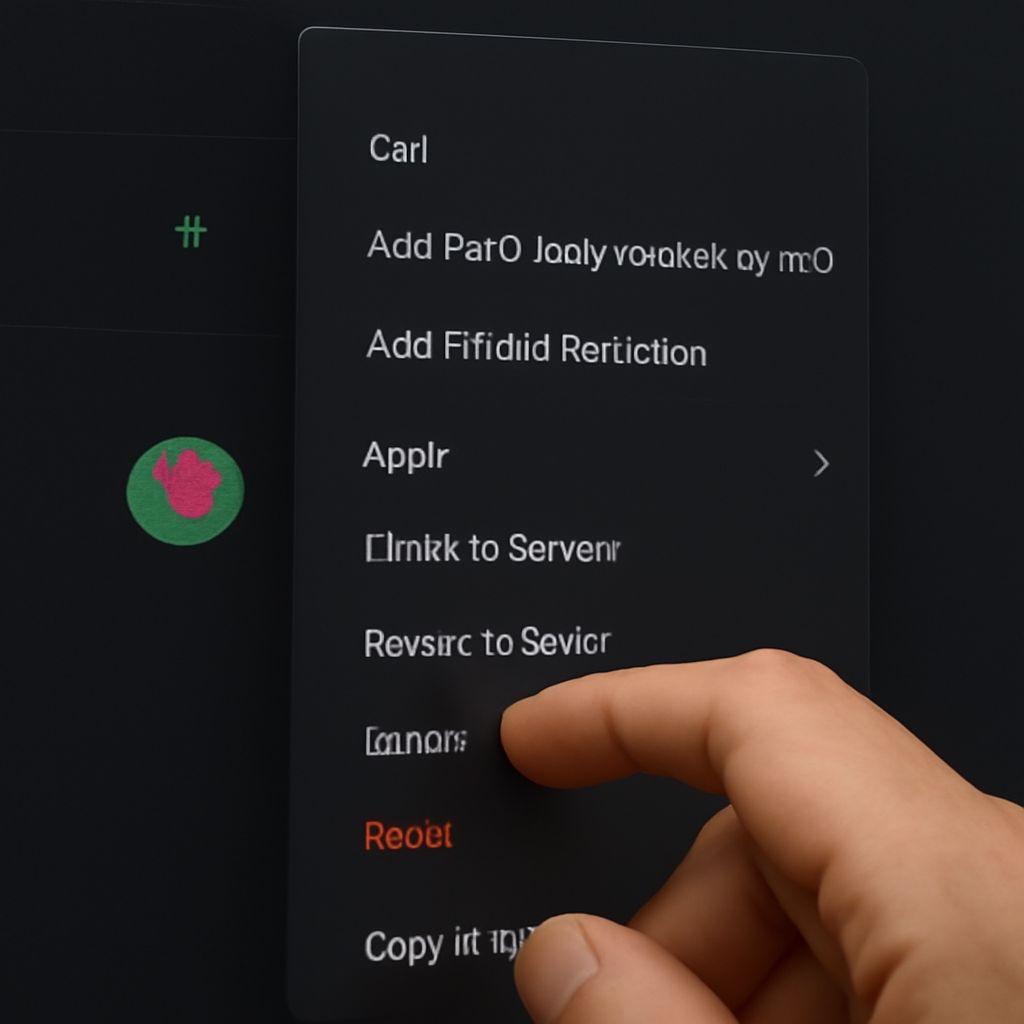
- Locate the ID: Right-click on the user, message, or server you wish to identify and select ‘Copy ID’ from the context menu. This action places the ID onto your clipboard for easy access.
- Utilize the ID: Paste the copied ID wherever needed, whether in a bot command, support ticket, or moderation log.
Performing these steps equips you with the knowledge to quickly find and use Discord IDs, ensuring seamless management of your online interactions.
Troubleshooting Common Issues
Sometimes, users may encounter issues while attempting a Discord ID search. One common problem is the inability to see the ‘Copy ID’ option. This usually results from Developer Mode not being enabled. Double-check your settings to ensure it’s activated.
If you find that the ID doesn’t seem to work, confirm that it was copied correctly. It’s easy to accidentally copy the wrong data if you’re in a hurry. Always recheck the numbers before using them in any critical processes.
Another issue might arise when Discord updates its user interface, causing changes in how features are accessed. Staying updated with Discord’s latest announcements will keep you informed about any adjustments to the platform’s settings or features.
Safety recap: When using tools for Discord ID lookup, ensure Developer Mode is activated correctly to avoid errors. Proper understanding and execution of these steps help maintain a secure and orderly Discord experience.