How to Use Wifi Calling When Cell Service Is Weak
A weak cellular signal can make a simple phone conversation frustrating even when your home internet works well. Learning to use your carrier’s voice service over a home network can give your phone another route for calls; start by checking your device and mobile plan.
Calls through a wireless network use a compatible carrier service and a suitable internet connection. Once enabled, you can dial normally and check your phone’s indicator to see when the feature is available.
Wifi Call: What You Need Before You Start
The service sends your carrier voice calls through a Wi-Fi network. It uses your existing phone number and the phone’s built-in calling app, so the other person does not need a matching app. Your carrier must support the feature on your particular phone and line, and you need a working connection to a network.
Before learning how to use wifi calling, check your carrier’s support page for your model and plan. On a dual-SIM phone, check the line you intend to use. Also look for carrier software updates and install any available phone updates. Settings can differ by manufacturer, software version, and carrier.
To use the service at home, start with a stable connection. Connect to your home network and check that a web page loads. On public networks, you may need to accept a sign-in page first; some networks may restrict the connection. A busy or unstable network can cause interruptions or poor audio, just as it can affect a video meeting.
Turn On the Feature on Your Phone
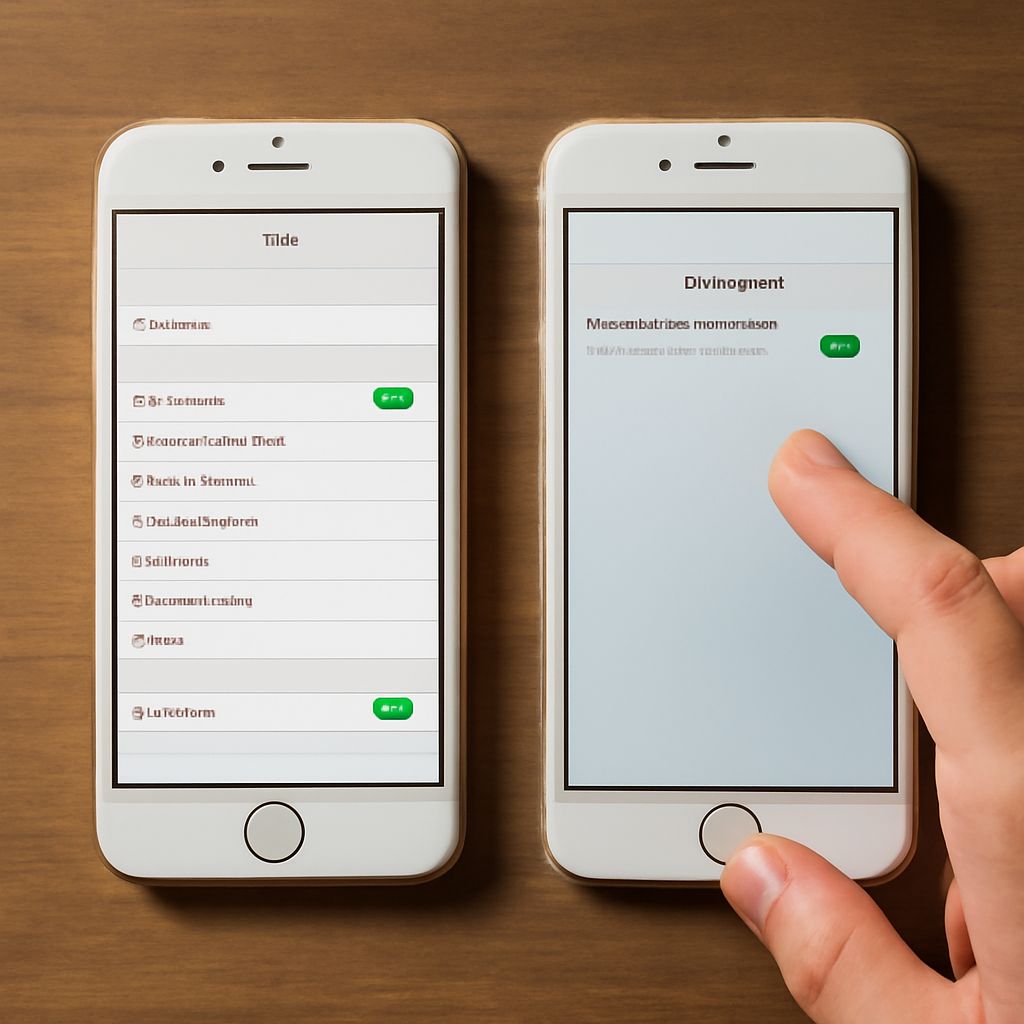
To set up and use the feature, begin in the phone settings for cell phone wifi calling and follow the instructions for your device and carrier. These examples help you find the setting; their labels may change with software updates.
- iPhone: Apple’s current instructions start in Settings, then Cellular. Select the line if you have more than one, open the calling option, and enable it on the iPhone.
- Android: Google’s Phone app guidance starts in Settings under Network & internet, then SIMs and the relevant carrier SIM. Open the calling option and turn it on. Other Android phones may place the option elsewhere.
If you cannot find the switch, search Settings for the feature name, then consult the manufacturer’s guide and your carrier’s model-specific instructions. An absent option can mean the line, device, or carrier configuration does not support it. Contact the carrier to check provisioning on your account before changing plans or equipment.
Confirm Your Emergency Address
During setup, enter or confirm the address requested for emergency services. Use the physical location where you expect to use the service, and update it through your carrier when that location changes. The address can help route a 911 call or help responders locate you if the network cannot determine your location accurately.
An outdated address can send responders to the wrong place. Verizon’s guidance explains that a caller away from the registered address may not reach the closest emergency service provider. Your carrier’s procedure can differ, so find its emergency-address update instructions before you travel or move. If you call 911, tell the dispatcher your actual location as soon as you can.
Place and Check a Call
To use the service for a conversation, open the usual Phone app, choose a contact or enter a number, and tap the call button. This is how to make a wifi call with the usual dialer; you do not need a separate app. That is also how to make wifi calls to contacts or new numbers; choose the intended line if your phone offers more than one.
First, look for the indicator described in your device’s instructions. Apple says “Wi-Fi” appears with the carrier name when the feature is available; Google describes an “Internet Call” notification on supported Android devices. The exact display depends on the phone and carrier.
Test the connection with someone you know. Ask whether your voice sounds clear and listen for delays or dropped audio. The phone may choose a cellular connection when it is available, so follow the device and carrier instructions for interpreting its indicator rather than assuming a call used the network just because the switch is on.
Charges depend on the carrier, destination, and location. For example, Verizon says calls to non-U.S. numbers are billed under the applicable international plan. Check your own carrier’s rates before calling abroad or using the service while traveling. A network provider may also charge for internet access.
To use this carrier service in a weak-signal room, leave the phone connected to a reliable network and keep its software current. If the test sounds poor, move closer to the router and repeat it; if activation fails, ask the carrier to check the line.
After setup, call someone you know and confirm both the on-screen connection indicator and clear two-way audio.