Audio Bitrate Explained: Choose a Setting for Your Files
Bitrate is the amount of audio data used per second. A higher rate usually makes a larger file, but the audible result also depends on the codec, source, and listening conditions. For an audio file, the bit rate is one useful setting to compare alongside format and purpose.
Start with what the file needs to do. A spoken voice note for a phone has different size and quality needs from a music master you plan to edit and archive.
Audio Bit Rate and File Size
Bitrate is commonly shown in kilobits per second, or kbps. A bit is a unit of digital information; eight bits make one byte. A codec is the method used to encode and decode the sound. With a constant bitrate, the encoder uses roughly the same amount of data for each second, so duration and rate give a useful size estimate.
For a ten-minute recording encoded at a constant 128 kbps:
- Convert ten minutes to 600 seconds.
- Multiply 128,000 bits per second by 600: 76,800,000 bits.
- Divide by eight: 9,600,000 bytes, or about 9.6 MB using decimal megabytes.
The actual file may be a little larger because of metadata and container overhead. At 256 kbps, the same duration would use about 19.2 MB for the audio data. This arithmetic helps estimate storage or upload time; it does not tell you whether the recording sounds good. The bit rate of the audio is only one part of that assessment.
Variable bitrate changes the amount of data used across the recording. An encoder may use more for complex passages and less for simpler ones. Its average audio bit rate can still help estimate size, but the exact result is known only after encoding. Audacity’s MP3 export guide describes constant and variable options.
Lossy and Lossless Work Differently
MP3 and AAC are lossy codecs: they reduce data by discarding some audio information. For the same codec and encoder, a higher audio bitrate generally gives the encoder more room to retain detail, though the improvement may be hard to hear at some settings. Different codecs and encoders can produce different results at the same number, so compare actual files rather than bitrate alone.
FLAC is lossless: it compresses audio without discarding the encoded sample data, allowing that data to be reconstructed. Its resulting bitrate varies with the material. PCM WAV is commonly uncompressed and generally larger. The Library of Congress guide compares these format families.
A larger audio bit rate cannot restore detail removed from a low-quality source. Converting a low-rate MP3 to a higher-rate MP3 or to WAV increases file size without recovering what the first encoding discarded. Keep a lossless original when possible and create each delivery copy from it.
Choose by Task
Use the destination’s published requirements first. If it does not specify a setting, these are practical starting points for a test, not guarantees of identical sound across encoders:
- Speech for sharing: Try a mono MP3 at 96–128 kbps when small size matters. Listen for harsh consonants and background artifacts.
- Music for everyday playback: Try a stereo MP3 at 192 kbps or a higher setting if you hear unwanted artifacts and can accept a larger file.
- Editing or preservation: Keep a lossless format such as FLAC or uncompressed PCM WAV. Its rate depends on the source and format settings rather than a lossy quality target.
These audio bitrates are examples, not a ranking of every service or codec. Compare the original and export at the same playback volume, regardless of their audio encoding bitrate, ideally on the headphones or speakers you actually use. Listen to demanding passages such as cymbals, quiet fades, or crowded speech. If the smaller file sounds acceptable and meets the destination’s requirements, it may be the better fit.
Check the Export
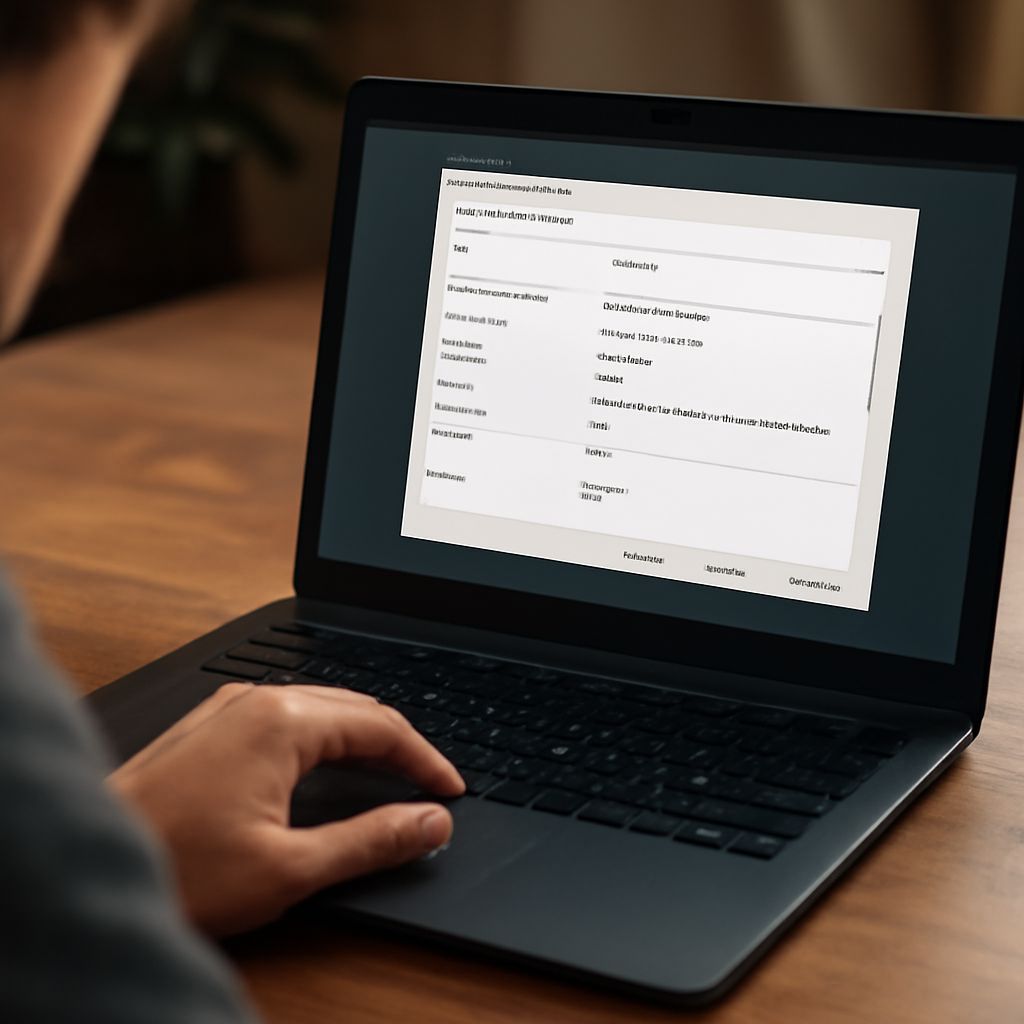
File properties or an audio editor can show the codec, duration, channels, and rate of the encoded audio. A player may report an average rather than a fixed value for a variable-rate file. Confirm that the file opens on the intended device and that the beginning and end are intact.
Which setting should you choose? For an everyday MP3, start with the speech or music example above, listen, and adjust the audio bitrate only if the result or file size calls for it. Keep the original so you can make a new export without repeatedly encoding a lossy copy.