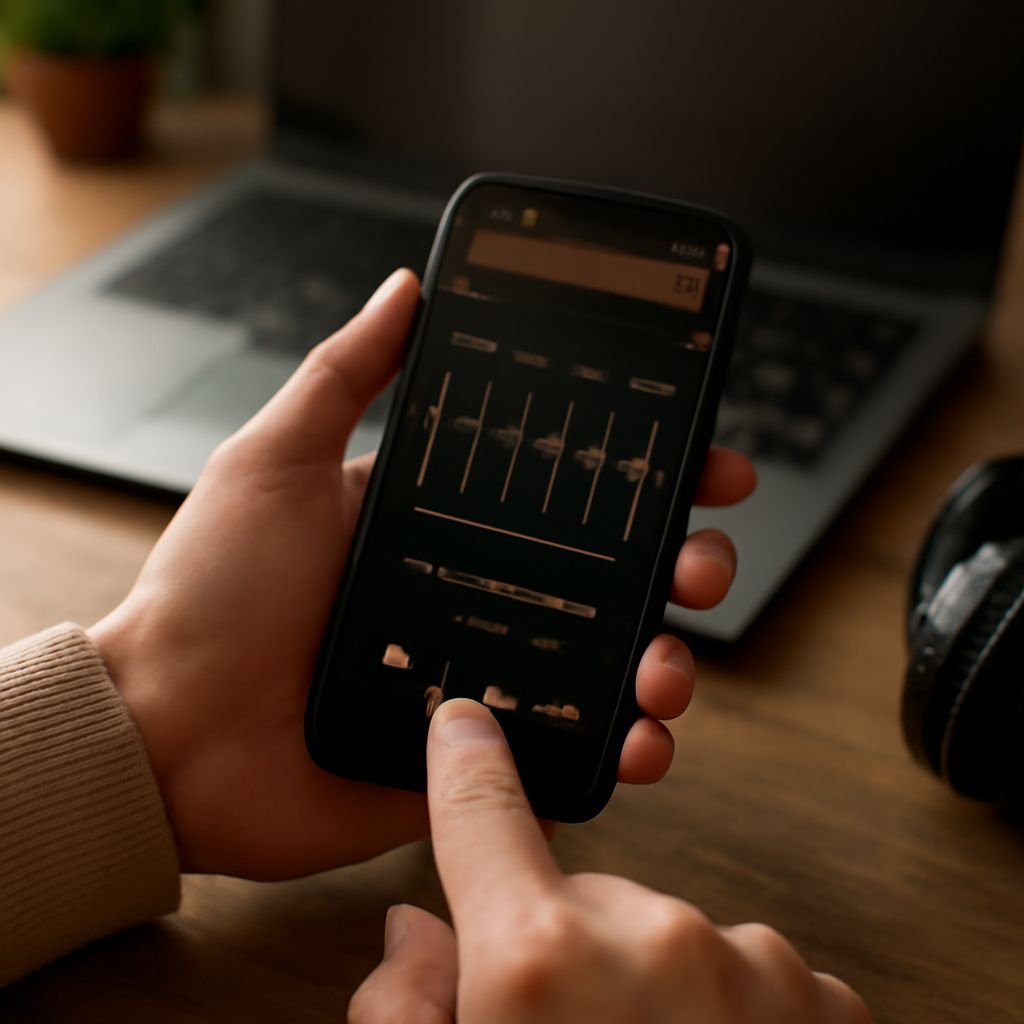
Audio Booster Options for Quieter Music, Video, and Voice
Start with the volume controls in the app, operating system, and headphones or speakers. A low setting at any one of these stages can make an otherwise normal recording hard to hear. Adjusting them may give you the audio volume boost you need without installing anything.
If the controls are already high, an audio volume booster or an editor can help in some situations. The right choice depends on whether you need a temporary increase during playback or a louder copy of a file.
Audio Boost: Check the Playback Chain
Play a familiar track and raise volume gradually. Check the player first, then the system output, and finally the physical control on your speakers or headphones. A Bluetooth speaker may have its own volume control. Confirm that sound is going to the device you intend to use; a laptop may still be sending it to a different output.
In Windows 11, open Settings > System > Sound > Volume mixer. Check both the system slider and the slider for the affected app. Microsoft’s guide also suggests turning off audio enhancements if sound is quiet or distorted. Test the same passage before and after the change.
On a Mac, select the output device and adjust its level in System Settings > Sound. In the Music app, check its own slider too: Apple notes that its maximum is limited by the computer’s output setting. These controls boost the audio reaching your speakers, but they do not change the original file.
If songs vary greatly in level, try Music’s Sound Check under Music > Settings > Playback. It adjusts loudness between songs, so a particularly loud track may become quieter. That is useful for consistent listening, while an audio boost aimed at one quiet recording has a different purpose.
Use an App for a Quiet File
For a recording you can edit, Audacity’s Amplify effect offers a measurable way to boost audio. Import a copy, select the relevant track or section, and open Effect > Volume and Compression > Amplify. Enter a positive amplification value, preview the result, and export a new file when it sounds right. Keep the original so you can revise the adjustment.
The effect raises selected material by the same amount, preserving relative differences within it. A whisper and a sudden shout both get louder. If the loudest peak already sits near the digital limit, there may be little room to increase the whole recording cleanly. In that case, reducing the loudest peaks with compression before adding gain can make quieter passages more audible. Listen for changes in the voice and background noise as you adjust.
An audio booster used during playback is more convenient when you only need to hear a file once. An audio playback booster applies its adjustment as you listen, so you can switch it off afterward. An editor is better when you need a louder copy to share or use in a project. The latter requires time to preview and export, but its adjustment stays with the new file.
Listen for Distortion and Protect Your Data
Clipping occurs when a signal exceeds the available level and its peaks are cut off. It can sound harsh, crackly, or fuzzy, particularly on drums and strong consonants. In Audacity, leave Allow Clipping unchecked when applying Amplify to prevent an adjustment above the displayed digital peak limit. If distortion appears during playback, reduce the audio level boost or player volume and test again.
An audio booster cannot restore detail missing from a poor recording. Boosting quiet audio also raises background hiss; a louder voice may be easier to hear while still sounding noisy. If possible, use a cleaner source or move closer to the microphone for a new recording. Better isolation from room noise can help more than a large boost to the audio afterward.
Some audio volume boosters work as browser extensions. An audio signal booster of this kind may request access to website data. Read its permissions and privacy policy before installing it. Chrome can restrict some site access to a specific site or activation, as explained in Google’s extension guide. An online editor may require an upload: check its retention and sharing terms, and use a local editor for sensitive recordings.
Choose the Right Control
For one quiet app, adjust its slider and the system mixer first. For uneven songs, try Sound Check. For a file you own and want to keep louder, use Audacity and preview the result. Choose an audio level booster for playback only after checking its permissions, and stop increasing the level when distortion or uncomfortable loudness appears.