How to Play iPhone Games on PC: Options and Limits
To play an iPhone game on a Windows PC, first look for an official Windows version. If there is none, you can show the game on the computer with a compatible screen-mirroring receiver while the iPhone runs it. Controls and delay matter.
The question of playing iOS games on a PC has two different answers: a Windows release runs on the computer, while mirroring sends a picture from your phone. Check the specific game’s supported platforms and account options before choosing either route.
How to play iOS games on PC through an official release
To decide how to play iOS games on PC, search the game’s official website or publisher’s store listing for a Windows download. Check the system requirements and install from the publisher or its authorized store. Compare the developer and title before installing.
Before switching devices, check whether the publisher supports cross-progression: the ability to use the same saved progress on another platform. Sign in using the account and linking method specified by the publisher. Some games keep progress, purchases, or subscriptions separate across platforms. Confirm those details before spending money again or starting a new save.
How you play an iPhone game on your PC depends on the Windows release: it may offer keyboard, mouse, or controller support designed for the computer. It leaves the phone free. When deciding how to play iPhone games on PC, this is the first option to investigate if your aim is to use desktop controls rather than just a bigger picture.
Mirror the iPhone to a Windows screen
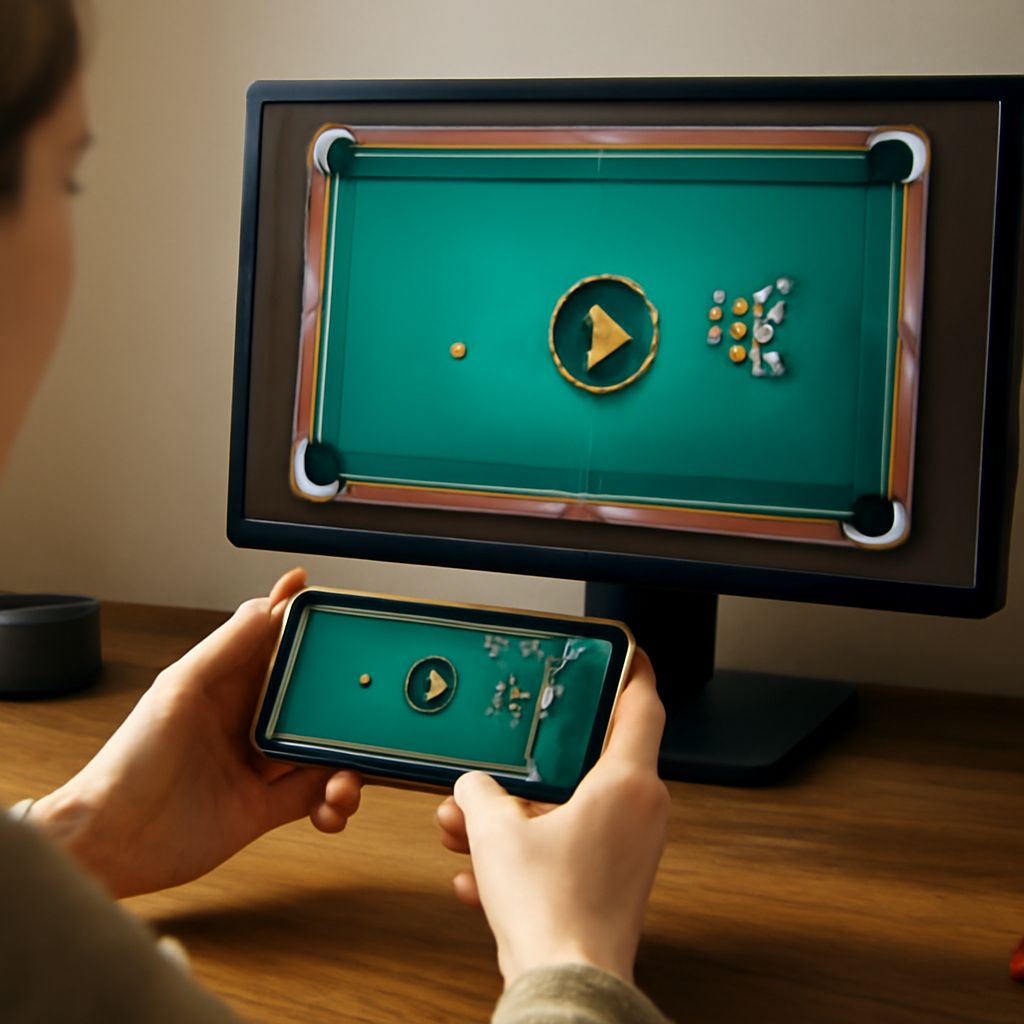
Screen mirroring displays the phone’s screen on another device. When playing an iPhone game on a computer this way, the game still runs on the phone, which must remain available during the session. For example, AirServer documents receiving an iPhone’s AirPlay mirror on a computer. Check its current Windows version, device requirements, and pricing before installing it.
To try a supported AirPlay receiver:
- Install and open the receiver on the Windows PC. Connect the PC and iPhone to the same local network, following the receiver’s setup instructions.
- Open Control Center on the iPhone, tap Screen Mirroring, and select the computer’s receiver. Enter a code if prompted.
- Launch the game on the phone. To end the session, return to Screen Mirroring and select Stop Mirroring.
Apple’s AirPlay instructions cover the iPhone controls. If the computer does not appear, check the receiver is running, both devices are on the required network, and the PC firewall permits the receiver as instructed by its developer. Guest networks can prevent devices from finding one another.
This approach lets you play iPhone games on PC displays, but it does not automatically turn mouse clicks into iPhone taps. Use the touchscreen, or pair a compatible controller with the iPhone if the game supports it. Check that the game’s menus and actions actually respond to the controller; support can vary between games.
Playing iPhone games on a Windows PC through a mirror also means the displayed image arrives after the phone renders it. That delay can make a fast action game feel harder even when a puzzle game works comfortably. To see how well an iOS game plays on your PC this way, test a short session before relying on the setup. A stable local connection and a less congested Wi-Fi network can help; keep the phone charged for longer sessions.
Understand emulator claims
Software advertised as an iOS emulator may be a development tool, a remote device service, or a screen-mirroring app. A claimed way to play iOS games on a Windows PC needs to be checked against what each product actually does. Apple’s Simulator is part of Xcode on macOS and is designed for development and testing; it is not a Windows method for installing arbitrary App Store games.
An Android emulator runs Android software, not the iOS copy of a game. If the same title has an Android edition, its availability, account linking, purchases, and rules for emulator use depend on the publisher. That is a separate route from playing an iOS game on Windows. Avoid tools that promise universal access to App Store titles but cannot explain their installation method, supported games, and account handling.
Choose the route for your game
For the most direct way to play an iPhone game on your PC, choose the official Windows release when it supports the account and controls you need. If the title is iPhone-only and you mainly want a larger view, test a compatible mirror with your phone and preferred controller. For timing-sensitive play, compare the delay with the phone’s own screen. The right way to play an iOS game on a PC is the supported option that preserves the progress and responsiveness you need.