Why Is My Wireless Mouse Not Working? Checks to Try
A frozen pointer makes it hard to investigate the very device you need. When your wireless mouse stops working, start with power and the surface, then check its receiver or Bluetooth connection. A wireless mouse that will not respond may have a simple connection problem; testing one change at a time helps identify it.
Why isn’t my wireless mouse working? Start with power
Turn the mouse off and on using its switch, if it has one. Replace disposable batteries with fresh ones, checking their orientation, or charge a rechargeable model using the manufacturer’s recommended cable. If it starts working after that, continue using it and watch whether the issue returns. An indicator light can help, but its meaning varies by model; consult the manual if it stays dark.
Why is my wireless mouse not working after a battery change? Check that any battery pull tab has been removed and that the compartment closes fully. If your wireless mouse still will not work or show power, inspect the contacts for obvious damage or leakage. Stop using leaking batteries and follow the device maker’s cleaning and disposal guidance. If the battery is built in and charging does not help, seek the manufacturer’s support rather than opening the case.
Check the surface and sensor
Put the mouse on an ordinary mouse pad or a plain, non-glossy surface. Clear dust from the sensor opening on the underside with a dry, soft cloth or as the manufacturer directs. A reflective or transparent surface can prevent some sensors from tracking reliably.
When diagnosing a wireless mouse, note whether clicks work while the pointer jumps or stays still. Improvement on the new surface points toward a tracking issue. If your wireless mouse neither clicks nor moves, continue to the connection checks. Do not spray liquid into the sensor opening.
Identify the wireless connection
Some mice use a small USB receiver supplied for that model; others connect through Bluetooth. Some support both and have a mode selector. Check the underside and manual before changing settings. A receiver for a different mouse is not automatically compatible, and replacement receivers may require a manufacturer-specific pairing process.
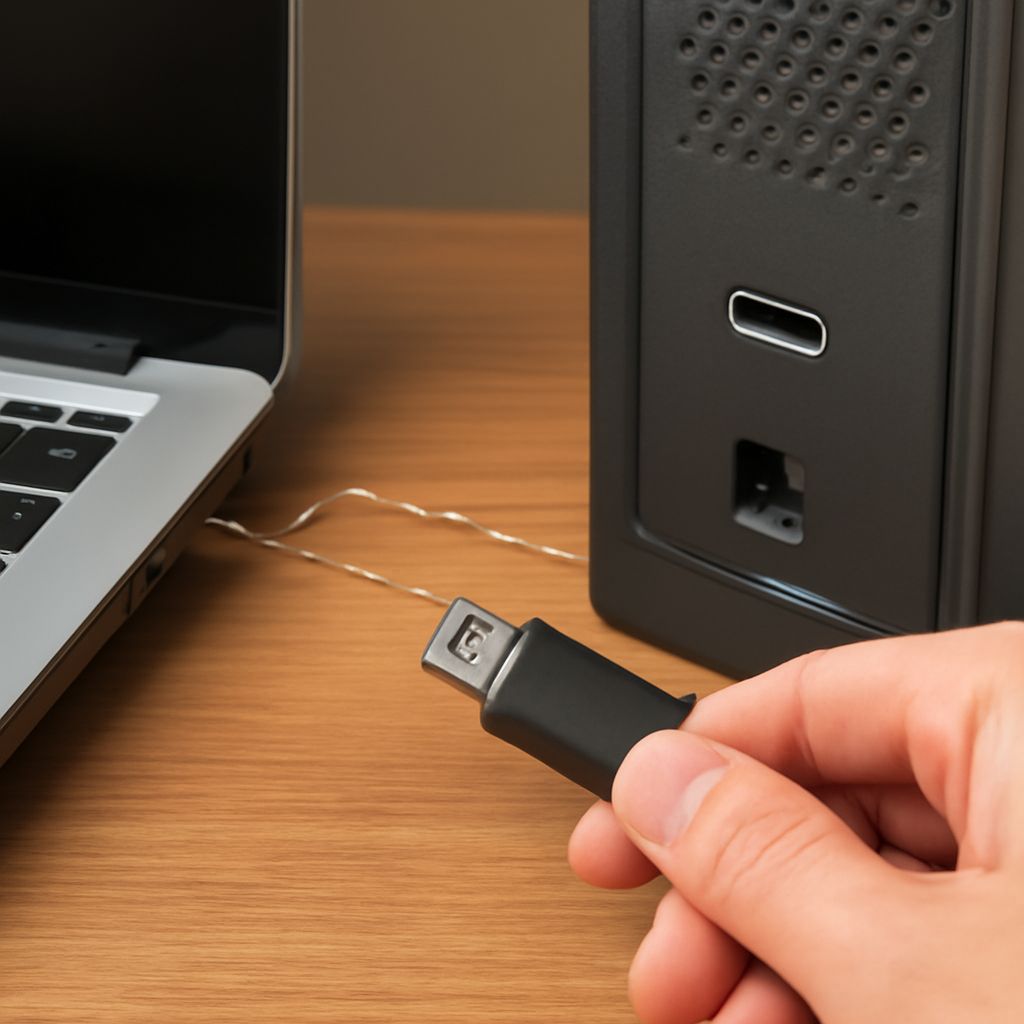
For a receiver-based mouse, insert its compatible receiver directly into another USB port, bypassing a hub or dock. Move the mouse closer, then switch it off and on. If it works in the new port, investigate the original port or hub. If the wireless mouse is still not responding, try the receiver and mouse together on another compatible computer. Microsoft’s hardware checklist covers these basic tests.
Why is my wireless mouse not working when the receiver is detected? Detection shows the computer can see a USB device, but the mouse may still be unpaired, out of range or without power. Follow the manufacturer’s pairing instructions for that exact receiver; if the pair also fails on another computer, the mouse or receiver needs further inspection.
Reconnect a Bluetooth mouse
Why isn’t my wireless mouse working after I switch computers? It may still be connected to the other device or set to a different connection channel. Select the intended channel if the mouse offers one, turn on Bluetooth on the computer and put the mouse into pairing mode as its manual describes. If your wireless mouse is listed but not working, remove it from the computer’s Bluetooth list and pair it again.
On Windows, you can press Windows + I to open Settings, then use Tab, arrow keys, Enter and Space to navigate controls. Open Bluetooth & devices, check that Bluetooth is on and select the mouse or add it again. Menu labels vary by version. A wired mouse or a laptop touchpad can also help during setup. Microsoft’s Bluetooth guide describes the pairing checks.
If Bluetooth is missing or cannot be turned on, the issue may be on the computer rather than the mouse. Restart the computer, then check its manufacturer’s guidance for the Bluetooth adapter and driver. Avoid downloading drivers from unfamiliar sites.
Compare results before replacing anything
Wireless mouse troubleshooting is most useful when you record what changed: power, surface, port or computer. If the mouse works on another compatible computer but fails on the first, focus on the first computer’s port, Bluetooth settings or driver. If a known-good mouse also fails there, the computer is a stronger suspect.
A wireless mouse that does not work on two compatible computers after fresh power and correct pairing may need repair or replacement; test the receiver too if the maker supports it. For continued wireless mouse problems, give support the model, connection type and test results. That evidence helps distinguish a failed accessory from a setup problem.