WiFi Card for Laptop: Upgrade Your Wireless Connection the Right Way
Your laptop drops signal constantly while the desktop three feet away runs fine. You’ve already tried moving closer to the router, but the problem persists. Installing a wifi card for laptop is the most direct fix — replacing the internal wireless adapter with a faster, more modern module that supports current WiFi standards. Whether you call it a laptop wifi card, a wifi card laptop upgrade, or simply a wifi laptop card swap, the process is more accessible than most people assume. You don’t need to be a technician, and the right wifi cards for laptops cost less than a new router. This guide walks through every step.
Understanding Laptop WiFi Card Formats and Standards
Most modern laptops use an M.2 (NGFF) form factor for their wireless adapter. Older machines may have a mini PCIe card instead. Before buying a replacement laptop wireless card, identify which slot your machine uses by checking the service manual or looking up the model number. WiFi 5 (802.11ac) cards are the current value option; WiFi 6 (802.11ax) is the performance pick for faster throughput and better performance in congested WiFi environments. WiFi 6E adds the 6 GHz band for even lower latency. Swapping a wifi card laptop to a WiFi 6 module is worthwhile if your router also supports that standard.
M.2 vs. Mini PCIe: Which Do You Have?
M.2 wifi cards are rectangular and connect to a slot on the motherboard via a single screw. Mini PCIe cards are slightly wider with two antenna connectors at the top. Both types support Intel, Qualcomm Atheros, and Realtek chipsets. Checking your laptop’s specifications page before purchasing a wifi laptop card replacement avoids buying the wrong format.
Checking Driver and OS Compatibility
Windows 10 and 11 include drivers for most Intel and Qualcomm wifi card laptop modules out of the box. Linux support varies by chipset — Intel WiFi 6 modules (AX200, AX210) have excellent mainline kernel support, while some Realtek chips require manual driver installation. Verify driver availability for your target OS before ordering wifi cards for laptops.
How to Replace a WiFi Card in Your Laptop
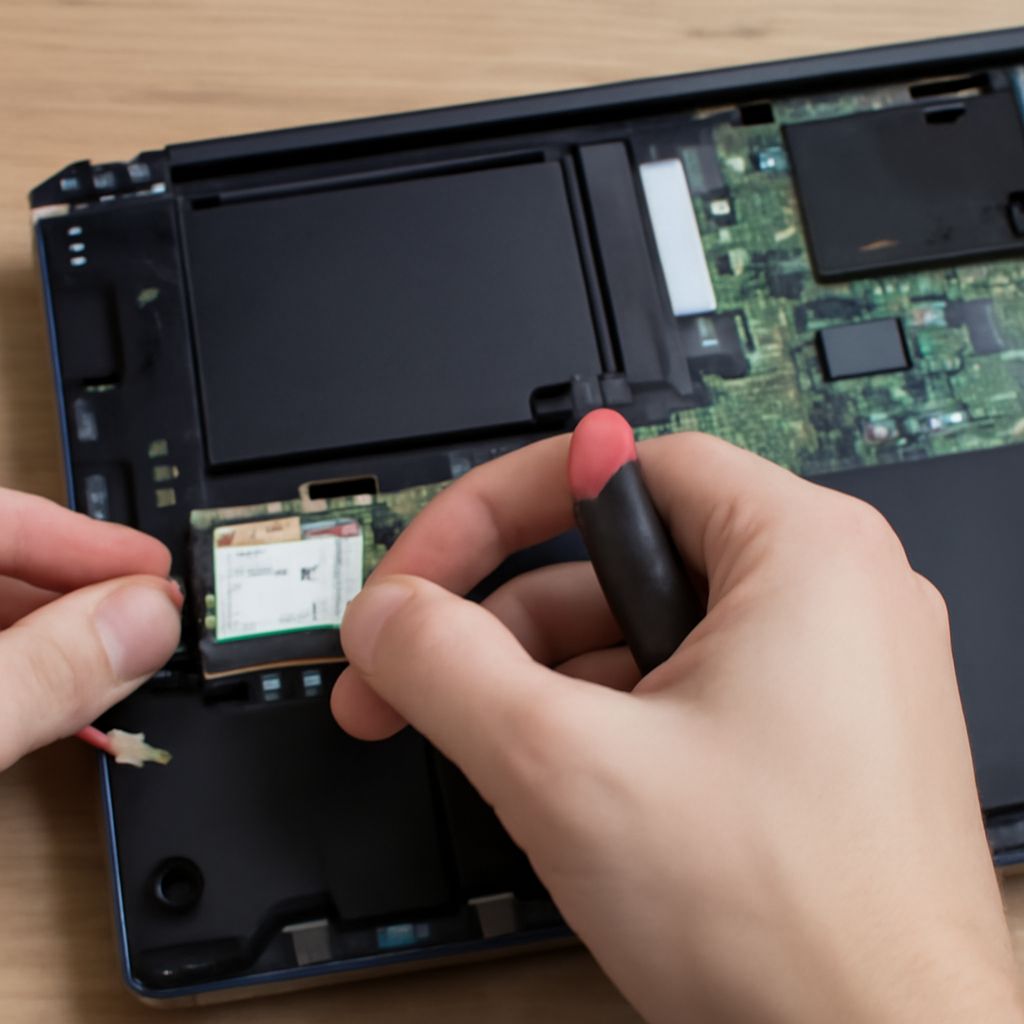
Power off the laptop and unplug the charger. Remove the back panel screws — usually Philips #0 or #00 — and lift the panel. Locate the laptop wireless card: it will have one or two thin antenna cables (white and black, or white and grey) connected to small snap-on terminals. Disconnect the antenna cables carefully by lifting straight up from the terminal. Remove the single M.2 or mini PCIe retaining screw, then slide the old wifi card for laptop out at a 30-degree angle. Insert the new card, secure the screw, and reconnect the antenna cables to the correct terminals (main to the white terminal, aux to the black). Reassemble and boot. Your OS should detect the new wifi laptop card automatically.
Performance Gains to Expect After Upgrading
Upgrading from an 802.11n laptop wifi card to 802.11ac (WiFi 5) can double or triple real-world throughput on a 5 GHz network. Moving from WiFi 5 to WiFi 6 matters most in crowded environments — apartment buildings with many access points — where OFDMA technology in the new wifi card laptop module reduces contention. Latency improvements are noticeable in video calls and online gaming after swapping wifi cards for laptops from older chipsets. Signal stability also improves because modern modules have better antenna diversity algorithms.
Troubleshooting After Installation
If the new laptop wifi card is not detected, reseat it — the module may not have clicked fully into the M.2 slot. If signal is weak after installing, check that the antenna cables are fully snapped onto the correct terminals. Reversed antenna cables (main on aux terminal) reduce signal by 5–10 dB. If the device appears in Device Manager but fails to connect, download the latest driver from the chipset manufacturer’s website rather than relying on Windows Update. Running the network adapter troubleshooter in Windows resolves most post-install connectivity issues with new wifi laptop card installations.
Next steps: Once your new wifi card for laptop is installed and connected, update your router’s firmware to take full advantage of WiFi 6 features. Run a speed test from multiple locations in your home to confirm the upgrade resolved your coverage issue. If signal is still weak in distant rooms, a mesh node or range extender addresses that remaining gap.