How to Set Up 2 Monitors for Maximum Productivity
Imagine yourself in your home office, ready to boost your productivity or dive into an immersive gaming experience. You’ve heard that a dual monitor set up is the way to go, but you’re unsure where to start. You envision a seamless workspace where you can effortlessly switch between tasks, or perhaps you dream of a more expansive view of your favorite game. This guide will help you understand how to set up 2 monitors to achieve maximum productivity and enhance your gaming sessions.
Why Use a Dual Monitor Set Up?
Leveraging a two-screen configuration can dramatically elevate your efficiency. By spreading your tasks across two displays, you can work without the hassle of constantly switching between tabs. For instance, you can keep your email open on one screen while working on a report on the other. Not only does this dual monitor set up facilitate multitasking, but it also reduces the cognitive load by allowing you to access information more readily.
Moreover, if you are a creative professional or a data analyst, having multiple monitors can streamline your workflow. Designers can spread their editing tools across one display while keeping the main project visible on the other, while analysts can monitor data sets and real-time updates simultaneously, boosting performance and facilitating decision-making.
How to Set Up 2 Monitors: Necessary Equipment
Before you learn how to set up dual monitors, it’s crucial to gather all the necessary gear. You’ll need two monitors, of course, but also the appropriate connections to link them to your computer. Most modern motherboards and graphics cards support dual outputs, so check if your system is compatible.
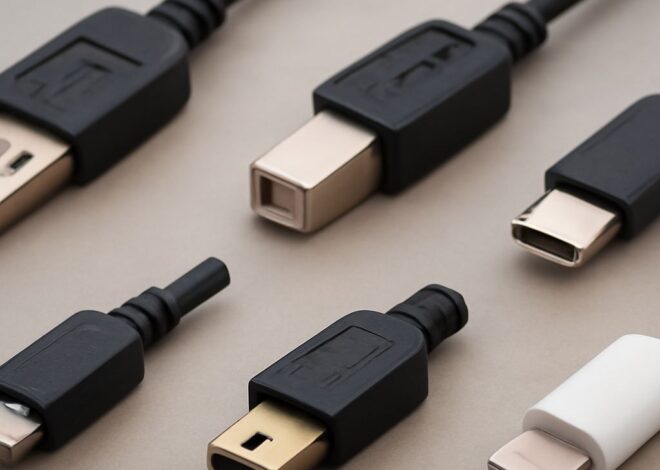
Ensure you have the correct cables, such as HDMI, DisplayPort, or VGA, depending on the ports available on your monitors and computer. An adjustable dual monitor stand or desk mount can be beneficial for arranging your screens ergonomically and freeing up desk space.
Step-by-Step Guide: How to Do Dual Monitors
Setting up dual monitors is simpler than it seems. Start by connecting your second monitor to your computer. Once everything is plugged in, power on the monitors and your PC. You may need to access the display settings on your computer to configure the screens to your liking.
On a Windows machine, navigate to the Display Settings by right-clicking on the desktop and choosing “Display settings.” From there, you can select how you want your displays to operate—whether you want to duplicate the screen, extend it, or use only one monitor. On macOS, visit System Preferences, click on Displays, and adjust the arrangements to extend your desktop across both screens.
After configuration, adjust the resolution and orientation for your monitors. Ensuring proper alignment and resolution will provide a seamless transition from one screen to the other.
Optimizing Your Dual Monitor Gaming Setup
For gamers, a dual monitor gaming setup offers a wider field of view and the ability to multitask. To set up your gaming system, install the latest drivers for your graphics card; these often come with software that allows you to customize your gaming experience across multiple displays.
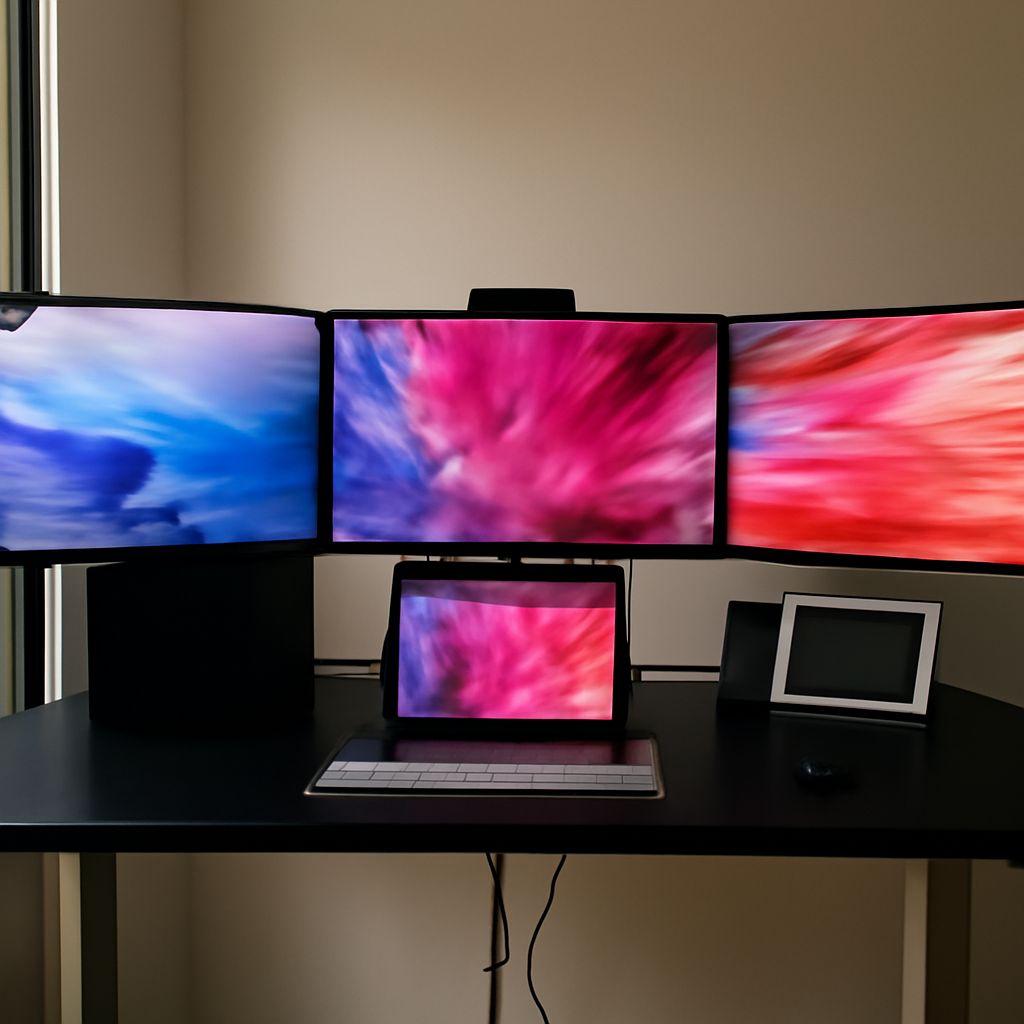
Consider the positioning of your screens for an optimal gaming experience. Your primary gaming monitor should be directly in front of you, with the secondary display angled slightly for peripheral tasks, such as monitoring chats or guides. Adjust your game settings to ensure compatibility with multi-monitor configurations; some games offer options to stretch the view across both displays, enhancing immersion.
Finally, invest in a high-quality graphics card capable of handling the increased demands of rendering graphics across two screens. This ensures smooth performance and can significantly enhance the visual experience.
Safety Recap: When setting up dual monitors, always handle your equipment with care—particularly cables and connector ports. Ensure your arrangement promotes good posture, with monitors at eye level to prevent strain. Regularly update device drivers to maintain system performance and compatibility with new applications.