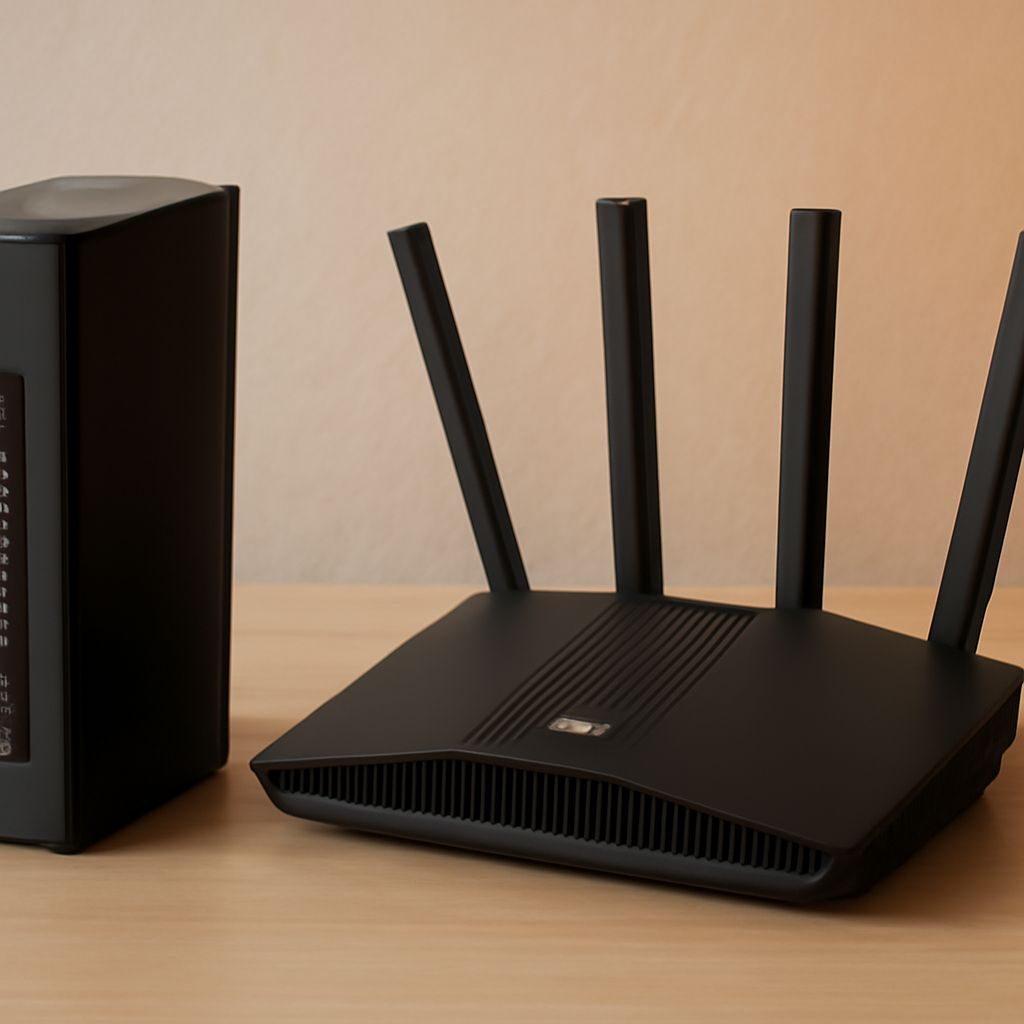
WiFi Access Point for Home: Fix No Internet, Printer Access Issues & Find the Best Reviews
You’ve just set up a new wifi access point for home, but something isn’t right. Your devices show wifi connected but no internet access, and when you try to print a document, you get a message saying the credentials supplied are not sufficient to access this printer. To make things worse, another machine is showing a printer access denied error. If any of this sounds familiar, you’re in the right place — and consulting wifi access point reviews before your next purchase can help you avoid these headaches entirely.
Home networking problems are surprisingly common, even with modern equipment. Whether you’re adding a home wifi access point to extend coverage or troubleshooting why your current setup keeps dropping connections, understanding the interplay between your wireless infrastructure and connected devices like printers is essential. In this guide, we’ll walk through the most common issues and the best solutions.
What Is a WiFi Access Point and How Does It Differ from a Router?
Router vs. Access Point: The Key Differences
A wifi access point for home extends your existing network by providing additional wireless coverage. Unlike a router, which creates and manages the network, an access point simply broadcasts the signal from a wired connection. This distinction matters because access points can sometimes create subnet conflicts that lead to connectivity issues.
When Should You Add an Access Point?
Adding a dedicated wireless access point for your home makes sense when your router’s signal doesn’t reach all areas, when you have many connected devices causing congestion, or when you want to segment your network for security. Proper placement is key to avoiding dead zones and interference.
Why Is WiFi Connected but No Internet Access Happening?
The message “wifi connected but no internet access” is one of the most frustrating in home networking. Your device has successfully joined the wireless network but cannot reach the internet. Common causes include:
- DNS server issues — Your router or access point isn’t resolving domain names
- DHCP conflicts — Two devices are assigning IP addresses, causing confusion
- ISP outage — The problem is upstream, not in your home network
- Incorrect gateway settings — The access point is misconfigured as a router
Fixing a wifi connected but internet-inaccessible situation often involves releasing and renewing your IP address, flushing DNS cache, or logging into your router to check DHCP settings.
How to Fix “The Credentials Supplied Are Not Sufficient to Access This Printer”
Understanding the Credentials Error
When you see “the credentials supplied are not sufficient to access this printer,” it typically means your Windows account doesn’t have permission to use the shared printer. This often happens after a Windows update changes authentication settings, or when the printer is shared from a machine with different user account credentials.
Step-by-Step Fix for Credential Errors
To resolve the credentials supplied not being sufficient for printer access, follow these steps:
- Open Credential Manager in Control Panel and remove any saved printer credentials
- Re-add the printer using its IP address rather than its hostname
- Ensure both computers are on the same workgroup
- Temporarily disable Windows Firewall to test if it’s blocking the connection
- Update printer drivers on both the host and client machine
Solving “Printer Access Denied” Errors on Your Network
A printer access denied message is related but slightly different from the credentials error. Access denied typically occurs when the printer’s sharing permissions don’t include your user account. Right-click the printer in Windows, select Printer Properties, navigate to the Security tab, and add your user account with Print permissions. Network printers can also show printer access being denied when the print spooler service has stopped — restarting it via Services.msc often resolves this immediately.
How to Choose the Best WiFi Access Point: What Reviews Tell Us
Reading wifi access point reviews before purchasing helps you avoid products that cause the very issues described above. The best reviews for wireless home access points cover:
- Ease of configuration — Avoid access points that require advanced networking knowledge
- Band steering — Automatically moves devices to the optimal 2.4 GHz or 5 GHz band
- MU-MIMO support — Handles multiple devices simultaneously without slowdowns
- PoE support — Allows powering the access point through the Ethernet cable
Top-rated wifi access point reviews consistently recommend brands like Ubiquiti UniFi, TP-Link EAP series, and Netgear WAX for home and small office use. These models rarely produce the DNS and DHCP conflicts that cause the “no internet” problem.
Pro Tips Recap
Setting up a wifi access point for home correctly from the start saves hours of troubleshooting. Always configure the access point in AP mode (not router mode) to prevent DHCP conflicts that cause wifi connected but no internet access errors. For printer issues, keep credentials updated in Windows Credential Manager, ensure proper sharing permissions to avoid printer access denied messages, and address the credentials supplied error by matching workgroup names across all machines. Always check wifi access point reviews focusing on firmware update frequency and community support before buying.