Find Printer IP Address: Every Method That Actually Works
Find Printer IP Address: Every Method That Actually Works
Your printer stops showing up in the print queue after a router restart, or you need to configure a port manually and realize you have no idea what address the printer is using. Knowing how to find printer ip address information is a basic skill that saves real time when troubleshooting. Whether you need to find my printer ip address on a Windows machine, you’re asking what is my printer ip address after a network change, or you’re finding printer ip address details for the first time on a shared office network, the methods below cover every situation. Keeping a record of my printer ip address in a sticky note or password manager prevents the same troubleshooting session from repeating every few months.
Finding Your Printer IP Address from the Printer Itself
Print a Configuration Page
Most network printers can print their own configuration sheet that lists the IP address, subnet mask, gateway, and MAC address. On many models, hold the Cancel or Info button for 3–5 seconds while the printer is idle. On HP printers, navigate to Setup > Reports > Network Configuration Page. On Canon printers, go to Settings > Device Settings > LAN Settings > Print LAN Details. The printed sheet shows the current IP under the TCP/IP section—this is the fastest and most reliable way to locate a printer’s network address without using a computer.
Read the Printer’s Control Panel
Printers with LCD or touchscreen panels display network information directly in the menu system. Go to Settings > Network > Wi-Fi Status or Settings > Network Information depending on the brand. The IP address appears alongside the SSID name and signal strength. On Epson printers, the path is typically Setup > Wi-Fi Setup > Wi-Fi Status. This method works even when the printer isn’t currently connected to your computer.
Finding the Printer IP Address from Windows
Through Control Panel or Settings
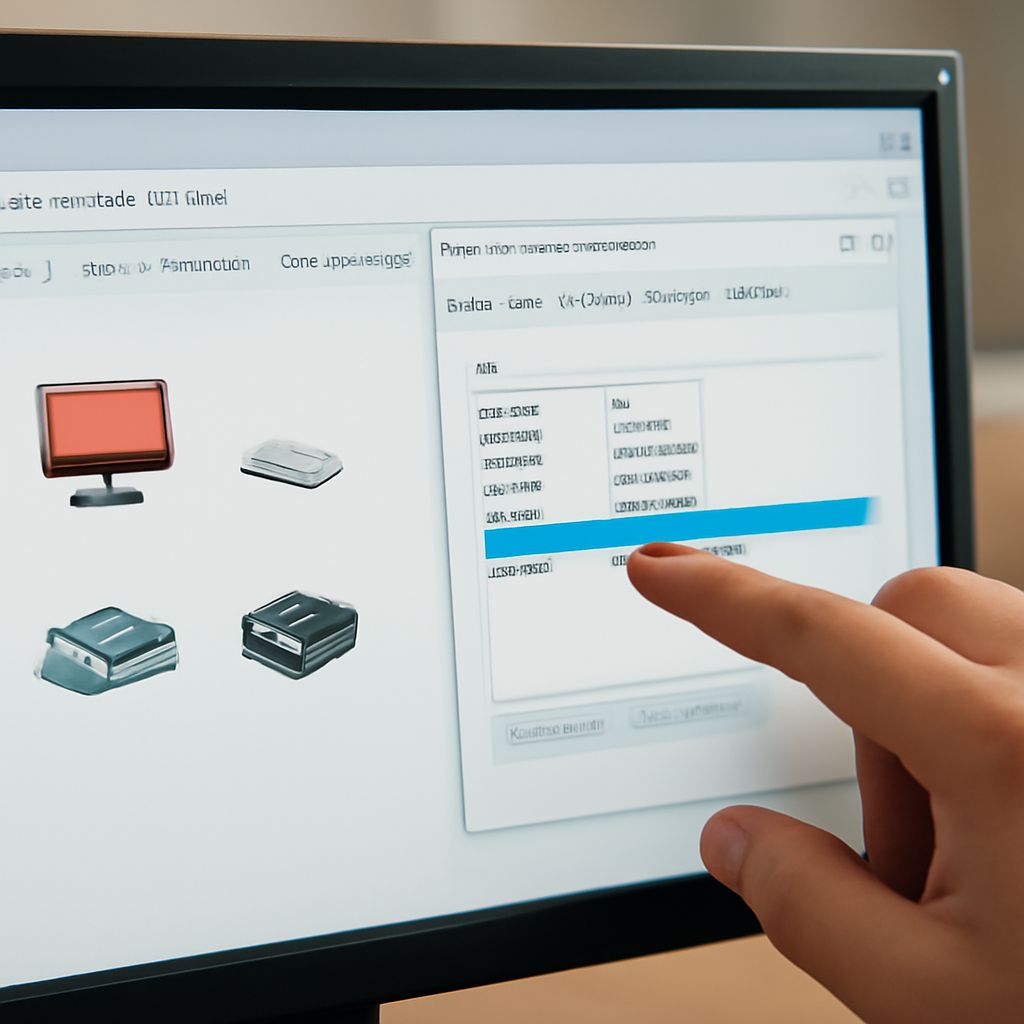
Open Settings > Bluetooth & Devices > Printers & Scanners on Windows 11. Click your printer’s name, then click Printer Properties. Navigate to the Ports tab and look for a port entry that begins with a number like 192.168—that’s the IP address your computer uses to reach the printer. On Windows 10, the path is Control Panel > Devices and Printers > right-click the printer > Printer Properties > Ports tab.
Using Command Prompt
Open Command Prompt and type netstat -n while a print job is active. The printer’s IP appears as the remote address in an established TCP connection on port 9100 (raw printing) or port 631 (IPP). Alternatively, type arp -a to list all devices on the local network with their IP and MAC addresses, then cross-reference the printer’s MAC address—found on the label on the back or bottom of the printer—to identify its IP.
Finding the Printer IP Address from Mac and Mobile Devices
On macOS, go to System Settings > Printers & Scanners, click the printer name, then click Options & Supplies. The General tab shows the device URL, which contains the IP address. Alternatively, open a print dialog from any app, click the printer name dropdown, and select Add Printer. The browser-based printer management page opens at the printer’s IP—copy it from the URL bar.
On iOS or Android, open the Wi-Fi settings and look for a device management app from your printer’s manufacturer—HP Smart, Canon PRINT, or Epson Smart Panel all display the printer’s current IP address on their home screen after discovering the device on your local network.
Using Your Router to Find Any Printer’s IP Address
Log into your router’s admin interface (typically 192.168.1.1 or 192.168.0.1) and look for a connected devices or DHCP client list section. Every device on your network appears with its IP and MAC address. Find the entry whose hostname matches your printer brand—look for “HP,” “EPSON,” “Canon,” or “Brother” in the device name. Routers from Asus, Netgear, and TP-Link all offer this view; some even let you assign a permanent IP to the printer’s MAC address, so it never changes after a reboot.
Bottom Line
The quickest way to find a printer’s IP address is printing a configuration page directly from the printer—no computer needed. For ongoing reliability, set a static IP or DHCP reservation in your router so the address never shifts after a restart. Keep the IP recorded somewhere accessible so you’re not troubleshooting from scratch the next time a print queue goes offline.