24 Inch Printer Guide: Wide-Format Printing and Common Issues
24 Inch Printer Guide: Wide-Format Printing and Common Issues
You need to print a poster, architectural drawing, or banner at full size — not scaled down to fit on letter paper. A 24 inch printer outputs media at true 24-inch width on roll or cut-sheet stock, which is the standard width for CAD prints, presentation graphics, and mid-sized signage. But before you invest in one, you’re also wondering: is my printer inkjet or laser, and does that even matter at this scale? It does, and understanding the distinction saves you from buying the wrong machine for your use case.
This guide covers how a 24″ printer fits into the wide-format landscape, how to determine is my printer inkjet or laser by a few quick checks, what common printer problems affect wide-format and desktop machines alike, and how to fix my printer issues without calling a technician.
What a 24 Inch Printer Is Actually Used For
Typical Applications
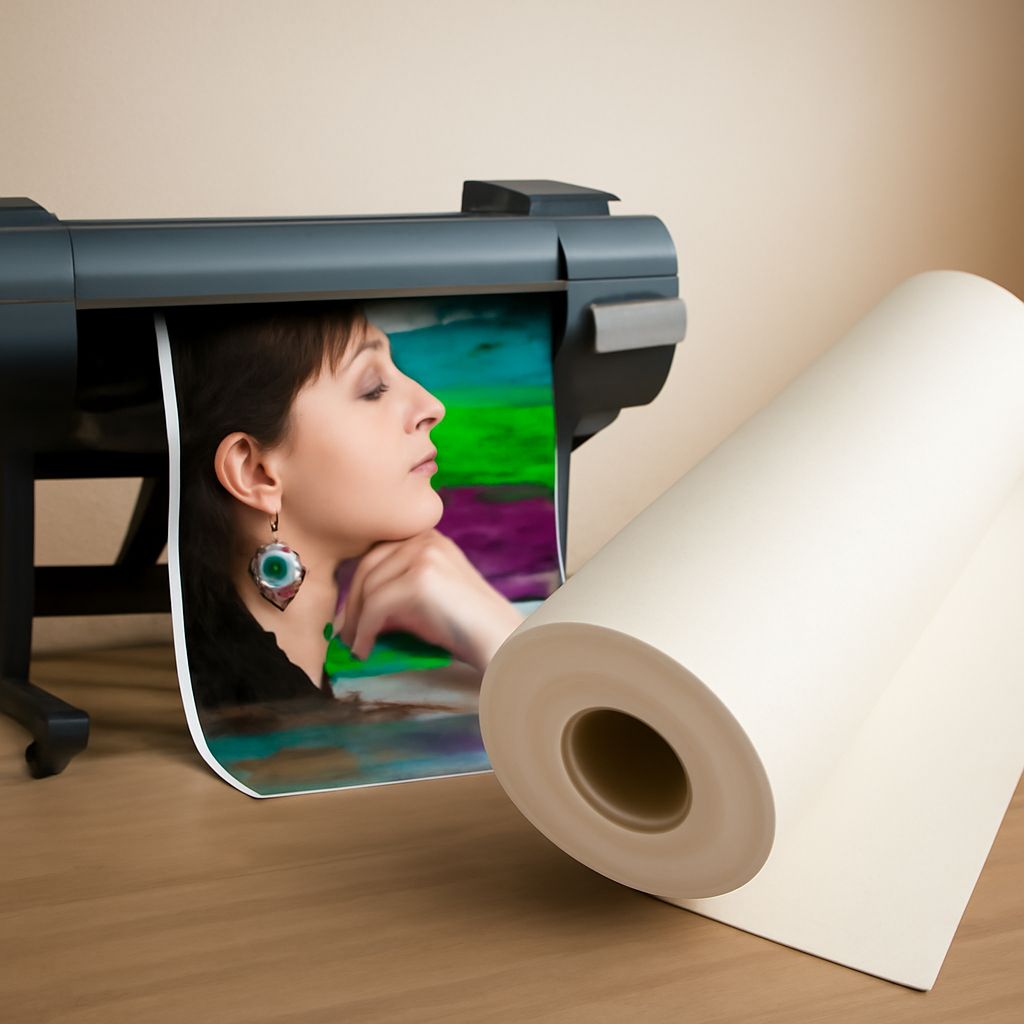
A 24 inch printer is the standard entry point for wide-format output. Architects use it for engineering B/D/E size drawings. Photographers use it for gallery prints on fine-art paper and canvas. Marketing teams use it for trade show graphics, banners, and presentation boards. Interior designers print large-scale renderings and material samples. At 24 inches wide, you can produce output ranging from small posters to full-width technical drawings without scaling or tiling — which is the core advantage over desktop printers.
Inkjet Dominates at This Scale
Wide-format 24″ printers are almost universally inkjet. Laser printing at this width exists but is rare, expensive, and primarily found in high-volume reprographics shops. For most buyers, a 24″ printer means an inkjet device using dye-based or pigment-based ink. The two dominant product lines in this segment are Canon’s imagePROGRAF and Epson’s SureColor SC-T series, both offering models with multiple ink channels for accurate color reproduction on coated papers, glossy photo media, and technical bond paper.
Is My Printer Inkjet or Laser?
Quick Visual and Physical Checks
Figuring out is my printer inkjet or laser takes less than a minute. Open the supply compartment: inkjet printers use liquid ink cartridges (small or large reservoirs, sometimes with a printhead attached). Laser printers use powder toner cartridges — cylindrical containers, usually larger, with no liquid. If you see a rotating drum component, it’s laser or LED. Inkjet printers are typically lighter and quieter during printing; laser printers warm up before printing and produce a distinct ozone smell. The output itself is also a tell: wet a printed inkjet page slightly and the ink smears; laser toner is fused to paper and water-resistant.
Why It Matters for Supplies and Maintenance
Knowing your printer type prevents buying the wrong consumables. Inkjet cartridges and laser toner are completely different products and are not interchangeable. Maintenance differs too — inkjet printheads need periodic cleaning cycles; laser drums and fusers need replacement at specific page counts. Most inkjet printers display ink level warnings automatically. Laser toners often print until empty without clear warnings, then suddenly produce faded output.
Common Printer Problems and How to Fix Them
Paper Jams and Feed Failures
Common printer problems in the paper feed path include jams, double-feeds, and skewed output. Clear jams by removing all paper from the input tray, opening the rear access panel, and carefully pulling jammed sheets in the direction of paper travel — never against it. Fan paper before loading to separate sheets. If double-feeding persists, clean the separation roller with a damp cloth; worn rollers require replacement parts available from the manufacturer or third-party suppliers.
Print Quality Issues
Horizontal bands, streaks, or missing colors on inkjet output usually mean a clogged nozzle — run the printhead cleaning utility from your printer’s settings menu. On laser printers, vertical streaks indicate toner smear on the drum; horizontal streaks at regular intervals mean a drum scratch requiring drum replacement. Ghost images (faint repeat of previously printed content) on laser output indicate a worn fuser or incorrect paper weight for the fuser temperature setting.
How to Fix My Printer: Step-by-Step Approach
When you need to fix my printer, start with the simplest steps before escalating: (1) Power cycle — turn off, unplug for 30 seconds, restart. (2) Check for firmware updates — manufacturers release fixes for common error codes. (3) Reinstall the driver — a corrupted driver causes connection and print quality errors. (4) Check ink or toner — even partial depletion causes quality issues. (5) Run built-in diagnostics — most printers have a self-test or nozzle check accessible from the control panel without a computer. (6) If none of these resolve the issue, search the specific error code on the manufacturer’s support site — most error codes have documented causes and solutions.
Bottom Line
A 24″ printer serves architecture, photography, and large-format graphics needs that desktop machines can’t handle. Virtually all wide-format printers at this width are inkjet. Knowing whether your machine is inkjet or laser guides everything from supply purchases to maintenance steps, and most common printer issues resolve with a power cycle, cleaning cycle, or driver reinstall before any hardware replacement is needed.