WiFi to Ethernet Adapter: Connect Any Device to a Wired Network
Your laptop has been dropping its wireless connection at the worst moments — mid-video call, mid-game, mid-upload. You know your router is fine because your phone shows full bars. The problem is the wireless card in your machine, and the fix is simpler than you think: a wifi to ethernet adapter plugs into a USB port and gives you a solid wired connection in seconds. No technician needed, no hardware teardown required.
Whether you want to convert wifi to ethernet on a streaming box, a laptop without a LAN port, or an older desktop, the right wifi ethernet adapter gets you there. A lan to wifi adapter works in the reverse direction too, turning a wired-only device into a wireless one. This guide walks you through both scenarios so you can pick the right tool and set it up correctly.
What Is a WiFi to Ethernet Adapter and How Does It Work?
The Difference Between WiFi and Wired Connections
Wireless connections transmit data through radio waves, which means they compete with neighboring networks, walls, and interference from microwaves and cordless phones. A wired connection sends data through a physical cable at a fixed, reliable rate. The adapter bridges those two worlds by receiving a wireless signal and outputting it through a standard RJ-45 Ethernet port — or the other way around.
When Wireless Just Isn’t Enough
Gaming, 4K streaming, and large file transfers all hit the limits of wireless faster than casual browsing does. Latency spikes, packet loss, and speed inconsistency are less common on a wired link. If your router is in a different room and you cannot run cable through walls, a dedicated bridge device or a USB-to-Ethernet dongle is your practical middle ground.
How to Choose the Right WiFi Ethernet Adapter
Speed Standards: USB 2.0 vs USB 3.0
USB 2.0 adapters max out at around 480 Mbps theoretical throughput, which often translates to 50–70 Mbps real-world speeds. USB 3.0 models push past 5 Gbps theoretical and handle Gigabit Ethernet without bottlenecking. If your internet plan exceeds 100 Mbps, spend a few extra dollars on a USB 3.0 unit.
Checking Compatibility with Your Device
Most adapters work with Windows, macOS, and Linux without installing extra drivers. Chrome OS support varies by brand. Check the product page for your operating system version before buying. Some newer adapters also work with Android tablets through USB-C, which is worth noting if you plan to use one with a tablet or phone.
Setting Up Your Adapter: Step-by-Step
Plug the adapter into an open USB port. Connect an Ethernet cable between the adapter and your router or wall jack. Windows and macOS typically detect the new network interface within 30 seconds and assign an IP address automatically through DHCP. Open your network settings to confirm the wired interface is active and shows a valid IP. If the connection does not appear, check the manufacturer’s site for a driver download specific to your OS version.
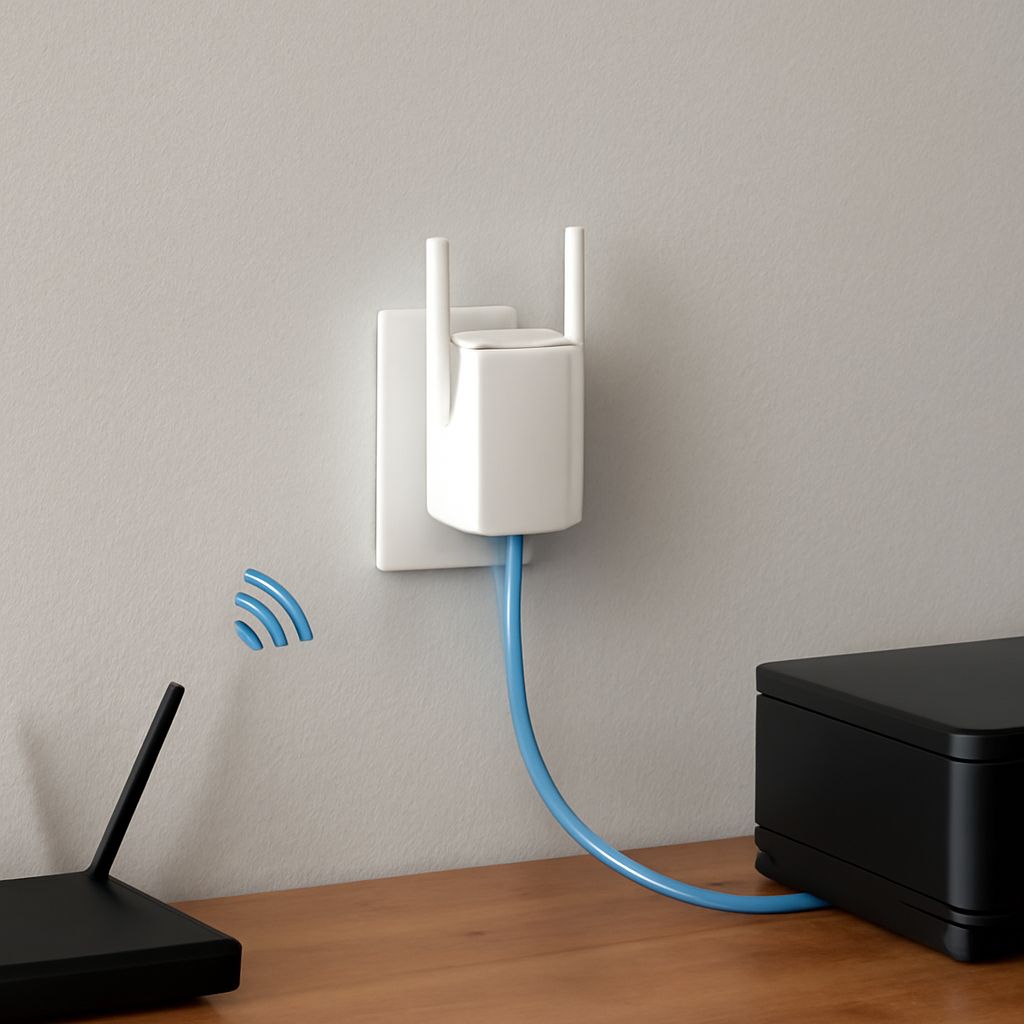
For a lan-to-wifi bridge device — the kind that converts a wired port into a wireless one — you generally access a small web interface at a default IP address (often 192.168.1.1) to enter your Wi-Fi credentials. The device then connects to your router wirelessly and shares that connection through its Ethernet port.
Common Use Cases for Converting WiFi to Ethernet
Gaming Consoles and Smart TVs
Many TVs and older consoles have Ethernet ports but sit far from the router. Placing a small bridge adapter near the TV and connecting it to your wireless network lets you plug a cable into the TV’s built-in LAN port. The result: lower ping and no buffering during peak hours.
Desktop PCs Without Built-In LAN
Some budget mini-PCs and thin clients ship without a wired port. A USB-to-Ethernet adapter solves this instantly. For desktops that already have a LAN port, a wifi-to-wired converting approach through a bridge device can still help if the router is on a different floor.
Troubleshooting Your WiFi to Ethernet Connection
If speeds are lower than expected, try a different USB port — some ports on older laptops are USB 2.0 even when others are USB 3.0. If the connection drops intermittently, update the adapter driver or try a different Ethernet cable. A solid green or amber LED on the adapter’s port usually means a live link; no light at all points to a cable or port problem. Also check that your adapter is not sharing a USB hub with other high-bandwidth devices, since USB hubs split available bandwidth.
Next Steps
Pick an adapter rated for Gigabit Ethernet if your plan is 100 Mbps or faster, and confirm USB 3.0 compatibility on your machine. Run a speed test immediately after setup to baseline your wired performance, then compare it to your wireless results. Most users see latency drop by 5–15 ms and upload speeds improve noticeably. Keep the driver current by checking the manufacturer’s support page every few months.