Wireless Mouse Not Working: Troubleshooting Tips
Picture this: you’re in the middle of an important task, your fingers flying over the keyboard, and suddenly, your wireless mouse is not working. Frustration builds as you click repeatedly, but your wireless mouse stopped working altogether. You might wonder, “Why is my wireless mouse not connecting?” and feel the urge to reach for a replacement. But before you do, let’s explore some troubleshooting steps to help you fix the issue.
Why is My Wireless Mouse Not Working?
Common Issues with Wireless Mice
Wireless mice, like all electronic devices, can encounter several issues over time. A widespread problem is interference from other wireless devices. Similarly, having multiple Bluetooth gadgets in close proximity can lead to connectivity problems. Another potential culprit is low battery power, which can cause your device to randomly disconnect.
Initial Checks to Perform
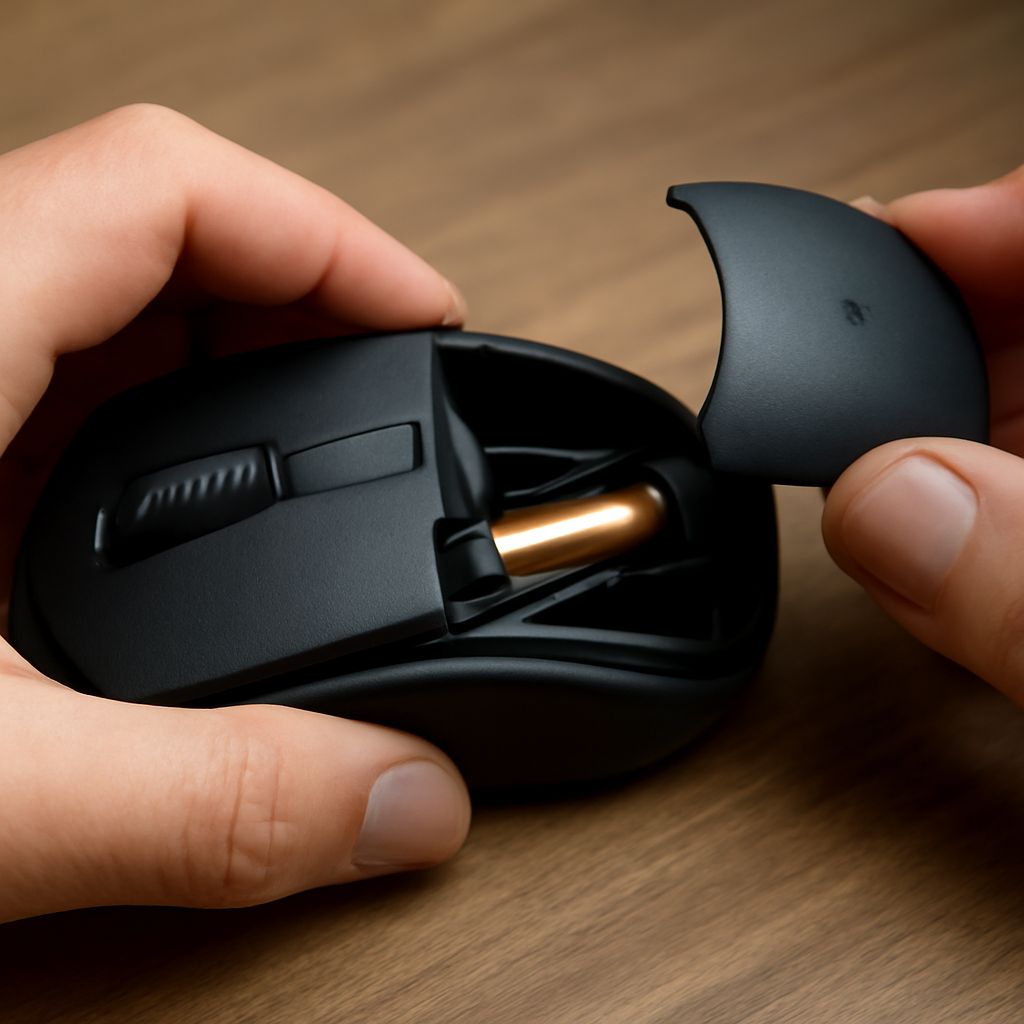
Before delving into technical solutions, perform a few basic checks. Ensure that the mouse’s power switch is on and the batteries are not depleted. Try replacing the batteries with fresh ones to rule out power issues. Additionally, verify that the USB receiver or Bluetooth dongle is firmly connected to your computer’s port.
How Can I Fix My Wireless Mouse Not Connecting?
Check Bluetooth and Device Settings
When your wireless mouse is not connecting, inspect the Bluetooth settings on your computer. Ensure that Bluetooth is enabled and that your mouse is paired correctly. Sometimes, unpairing and repairing the device can resolve connection issues. Additionally, check for any pending updates to the Bluetooth software that might improve compatibility.
Update or Reinstall Drivers
Outdated or corrupted drivers can prevent your wireless mouse from connecting. Navigate to the device manager on your computer and locate your mouse under the ‘Mice and other pointing devices’ section. Right-click to update the driver or, if necessary, uninstall it and then reinstall the latest version from the manufacturer’s website. This process can restore functionality if your mouse was not connecting properly.
Why Did My Wireless Mouse Stop Working Suddenly?
Battery and Power Issues
One of the most common reasons a wireless mouse stops working suddenly is battery depletion. Regular use can drain the power supply, leading to intermittent performance or total disconnection. Check the battery level and replace it if necessary. If your device uses rechargeable batteries, ensure they’re adequately charged.
Interference and Range Problems
Wireless mice rely on radio frequencies to communicate with your computer, making them susceptible to interference. Devices such as routers, mobile phones, and other wireless peripherals can disrupt the signal. Ensure there are minimal obstacles between the mouse and the receiver to maintain a stable connection. Adjusting your work setup to minimize obstructions can also help.
What Should I Do If My Wireless Mouse Stopped Working?
Reset the Connection
If your wireless mouse stopped working, resetting the connection might help. For Bluetooth mice, try unpairing the device, turning it off, and then turning it back on before re-pairing it. For models with a USB receiver, unplug and reinsert the dongle into a different port. This can sometimes rectify any minor connectivity glitches.
Use Troubleshooting Tools
Most operating systems have built-in troubleshooting tools that can automatically detect and fix issues with your wireless mouse. Access the troubleshooting settings through your system’s control panel and follow the on-screen instructions. These tools can identify and resolve hidden problems that aren’t immediately apparent.
Bottom line: A wireless mouse that is not working can be a source of frustration, but don’t immediately assume the worst. By methodically checking for power, connectivity, and interference issues, you can often restore functionality quickly. Keep these troubleshooting tips handy, and you’ll be prepared to tackle any wireless mouse issues in the future.