Printer Test Page: How to Print and Use a Test PDF for Color and Alignment
Printer Test Page: How to Print and Use a Test PDF for Color and Alignment
Your prints are coming out faded, misaligned, or with banding across the page. Before you buy new ink or call for service, printing a test printer page reveals exactly what’s happening at the hardware level. Whether you need a printer test page pdf from a manufacturer’s utility or a downloadable printer test pdf, a structured printer test pattern shows you which ink channels are weak, whether the heads are aligned, and if color reproduction is accurate.
A color laser printer test page serves a slightly different purpose than an inkjet test, but the diagnostic logic is the same. You’re creating a known reference output and comparing it to expected results. This guide covers how to access built-in test pages, where to find printable test PDFs, and how to read what the output is telling you.
Built-In Test Pages vs. Downloadable PDFs
Most printers include a built-in self-test routine that prints a test printer page directly from the device, without a computer. On many inkjet models, you hold down specific button combinations during power-on. On laser printers and networked office machines, the control panel typically has a diagnostic or reports menu that includes a test page option.
Built-in test pages are the most reliable diagnostic tool for the printer itself because they bypass the computer, driver, and software layer entirely. If the built-in test page looks perfect but your computer prints look bad, the problem is in the driver or software chain, not the printer hardware.
Downloadable printer test page PDFs serve a different purpose: they let you print a standardized, repeatable reference image from any computer through the normal print path. This is useful for checking color accuracy, gamut, and how the printer renders fine gradients and text at different sizes.
Where to Find a Printer Test PDF
Several reliable sources provide printer test page PDF downloads for free:
- Manufacturer support sites: HP, Canon, Epson, and Brother all publish test pages specific to their printer lines
- International Color Consortium (ICC): Provides color profile test charts
- Dry Creek Photo: Well-regarded photo test targets for inkjet photo printers
- Print Magazine and professional design sites: Offer print test PDFs with color bars, registration marks, and text samples
When downloading a printer test pdf, verify the source is the actual manufacturer or a known professional resource. Arbitrary test page downloads from unfamiliar sites are unnecessary since the built-in test is always available.
Reading a Printer Test Pattern: What to Look For
Nozzle Check Patterns
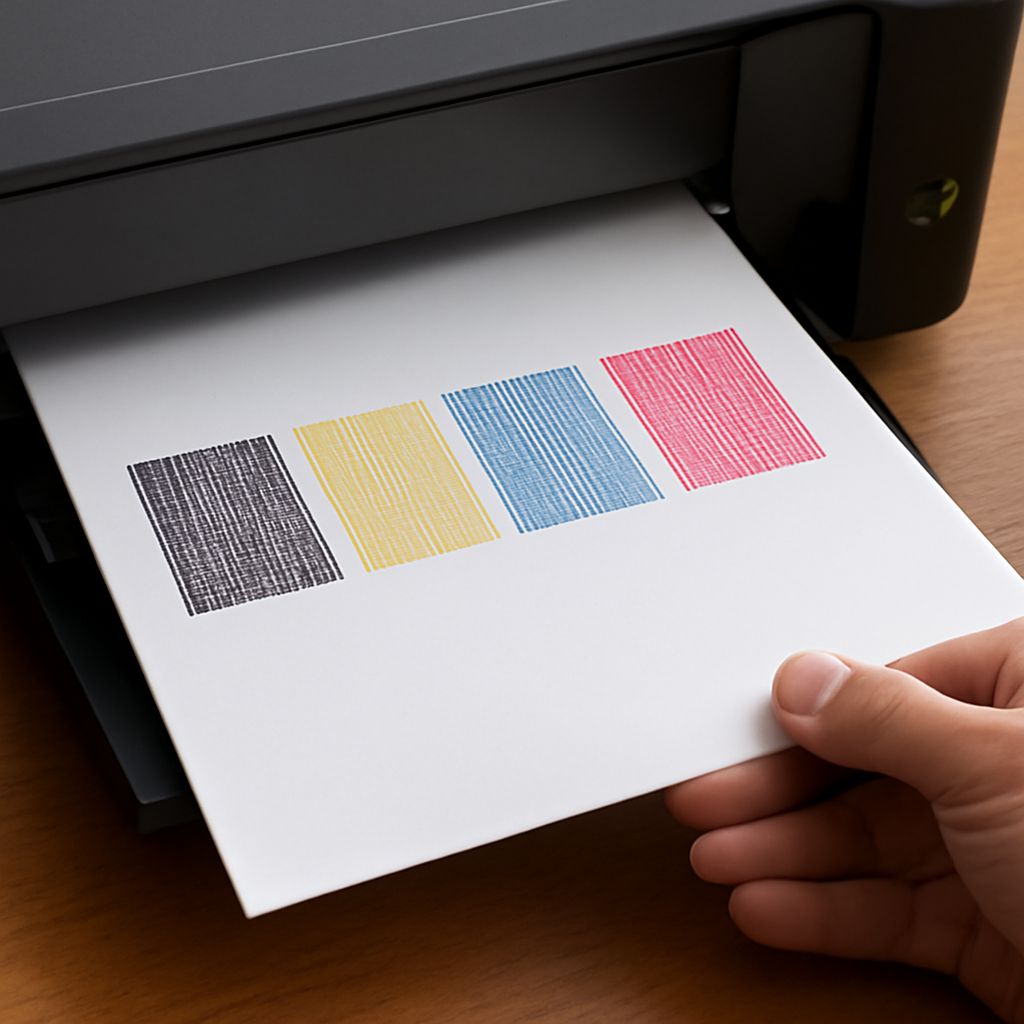
An inkjet nozzle check test printer page prints a grid of thin horizontal lines for each ink channel. A perfect nozzle check shows completely solid, unbroken lines across the full width. Missing lines indicate clogged nozzles in that specific channel. The position of the gaps tells you which nozzle or nozzle group is affected.
If gaps appear, run the printer’s built-in head cleaning cycle and print another nozzle check. Most inkjet printers allow 2 to 3 cleaning cycles before ink consumption becomes significant. If gaps persist after multiple cycles, a manual deep clean or professional service may be needed.
Color Bars and Gradients
A color laser printer test page includes solid color patches and gradients for cyan, magenta, yellow, and black. Solid patches should be uniform with no streaking, banding, or density variation. Gradients should transition smoothly from 0% to 100% density without stepping or tonal jumps.
Banding on laser pages typically indicates a dirty or worn drum unit. Streaking usually points to a low-toner or defective toner cartridge. Spotting on the page repeating at regular intervals often corresponds to debris on the drum surface, and the interval between spots helps identify which drum (CMYK have different diameters) is the source.
Using a Printer Test Pattern for Alignment Checks
Alignment test pages print a series of numbered bracket pairs or boxes at incremental offsets. You identify which pair looks most centered or perfectly aligned and enter that number into the printer’s alignment utility. This corrects for minor physical variation in the print head carriage position relative to the paper path.
Print alignment matters most when printing text adjacent to images, when printing borderless photos, and when doing duplex printing where the front and back of the page need to register correctly. Run alignment checks after replacing a print head or ink cartridges, and whenever text appears slightly jagged or images show color fringing at high magnification.
Color Laser Printer Test Page: Specific Diagnostics
A color laser printer test page typically includes registration targets that check alignment between the four color planes (CMYK). If cyan, magenta, yellow, and black don’t land in exactly the same position, fine text shows color fringing and color images look slightly blurry. Registration calibration corrects this and is usually triggered from the printer’s maintenance menu.
Density calibration is another laser-specific diagnostic. Laser engines need to know how much toner to lay down for each density value. If the printer’s density calibration drifts, shadow areas look muddy or highlight areas blow out. A test page with a full 21-step density scale from white to black reveals whether calibration is needed.