Wireless Printer Offline: Why It Happens and How to Fix It
Wireless Printer Offline: Why It Happens and How to Fix It
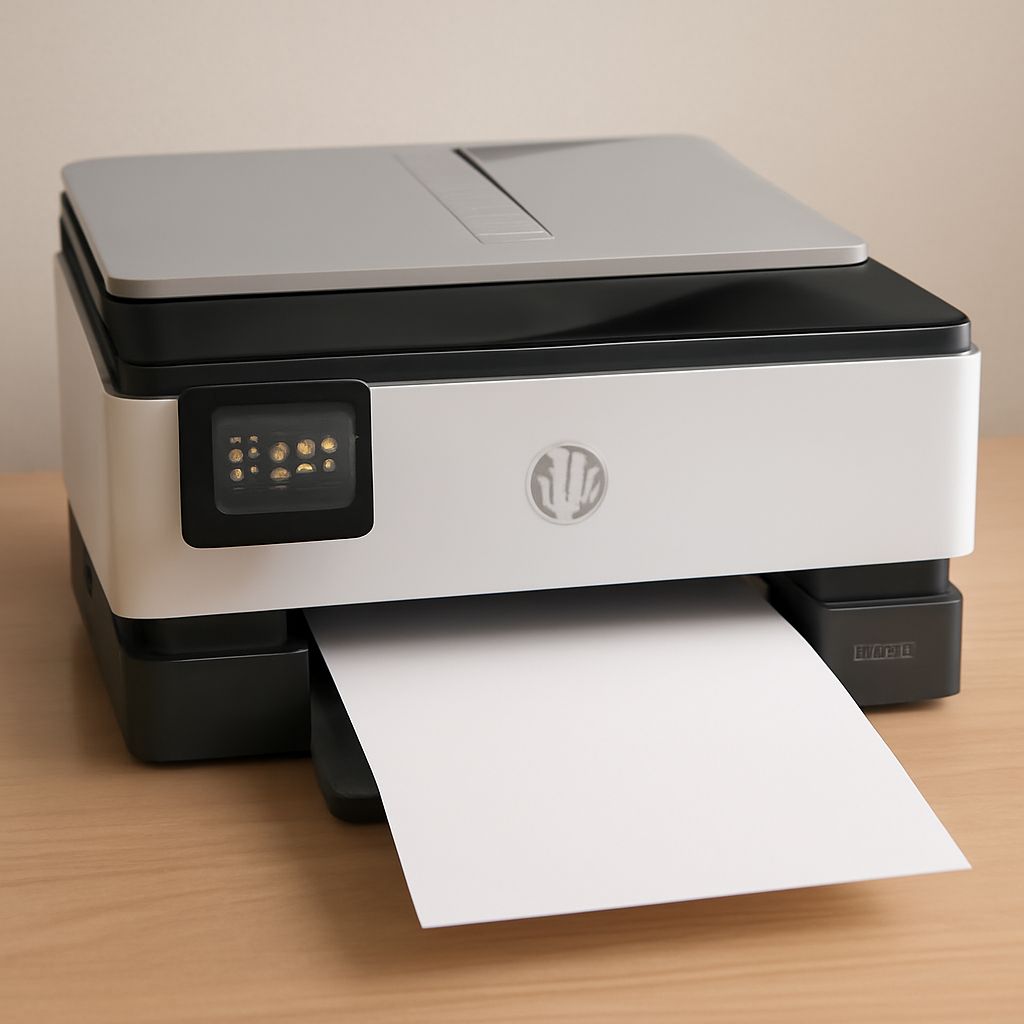
You click print, nothing happens, and the status shows your wireless printer offline. This is one of the most reported issues with networked printers, and what causes a printer to go offline is almost always one of a small set of fixable problems rather than a hardware failure. A wifi printer offline error usually means the printer and the computer have lost their network connection, the printer’s IP address changed, or a stuck print job is blocking the queue. None of these require a technician.
Understanding what makes a printer go offline helps you fix the issue in minutes rather than spending an hour rebooting equipment randomly. A printer connected but offline message is particularly confusing because the device is physically on and connected to your network, yet your computer refuses to send print jobs to it. This guide walks through every common cause of wireless printers going offline and gives you the specific steps to resolve each one, permanently if possible.
Why Your Wireless Printer Goes Offline
IP Address Changes After Router Reboot
Most home and office routers assign IP addresses dynamically (DHCP). Each time the router reboots or the printer reconnects to the network, it may receive a different IP address. Your computer’s printer driver stores the old IP address, sends print jobs to that address, gets no response, and marks the printer offline. This is one of the most common reasons what causes a printer to go offline repeatedly. The fix is to assign the printer a static IP address through the router’s DHCP reservation settings. Look up your printer’s MAC address in the network settings menu, then tell the router to always assign that MAC address the same IP. After this, the printer’s IP never changes and the offline problem stops recurring.
Print Queue Stuck on a Failed Job
A corrupt or failed print job can block the entire print queue, making subsequent jobs appear to fail and the printer show as offline. Open the print queue (Windows: Settings > Printers > your printer > Open print queue). If you see jobs listed, cancel them all. If the queue will not clear, stop the Windows Print Spooler service, delete files from C:\Windows\System32\spool\PRINTERS, restart the Spooler service, and try again. On macOS, go to Printers and Scanners, select the printer, click Open Print Queue, and delete all pending jobs.
Network and Driver Issues That Cause WiFi Printer Offline Errors
Firewall or Security Software Blocking the Printer
After a Windows or security software update, firewall rules sometimes change and block the printer’s port (typically TCP 9100 for raw printing, or UDP 5353 for Bonjour discovery). If your wifi printer offline problem started after a software update, temporarily disable the firewall and test printing. If printing works, add a firewall exception for the printer’s IP address and port. Your security software’s documentation covers how to add specific application or port exceptions.
Outdated or Corrupt Printer Driver
A driver that was working may break after an operating system update. For what makes a printer go offline after Windows updates, the fix is usually reinstalling the driver. Download the latest driver directly from the printer manufacturer’s support page (not through Windows Update, which often installs generic drivers). Uninstall the existing printer completely from Windows Printer settings, reboot, and reinstall with the fresh driver package. This resolves most cases of a printer connected but offline that cannot be fixed by rebooting the printer and router.
Hardware Causes of Wireless Printer Offline
Less commonly, the printer itself has lost its Wi-Fi configuration. This happens after a power outage, a factory reset, or a firmware update. Check the printer’s network settings from the control panel: if it shows no IP address or 0.0.0.0 as the IP, it has lost its wireless configuration. Run the wireless setup wizard from the printer’s control panel to reconnect to your Wi-Fi network. You will need your network name (SSID) and password. Once reconnected and assigned an IP, reinstall the printer on your computer pointing to the new IP address.
Preventing Offline Issues Going Forward
Set a static IP reservation for your printer in the router. Turn off the printer’s power saving mode or increase the sleep timer to at least 30 minutes; printers that sleep too aggressively often lose their network connection and need manual waking. Enable the “Keep printer online” or “Auto wake” option in the printer driver settings if available. On Windows, you can also disable the “SNMP Status Enabled” checkbox in the printer’s port settings, which prevents the computer from marking the printer offline when SNMP queries time out.