What to Do When Printer Is Offline: Fix It Fast on Any Device
What to Do When Printer Is Offline: Fix It Fast on Any Device
You hit Print and nothing happens—the job just sits in the queue while your printer shows “Offline” on every screen you check. Knowing what to do when printer is offline saves you from a frustrating troubleshooting spiral. The question of why does my printer say its offline has several distinct causes, and the fix depends on which one applies to you. Understanding why does a printer go offline in the first place helps you stop it from recurring. The short answer to why is a printer offline most of the time: the computer lost its connection to the printer—either over the network or via USB—and defaulted to an offline status that doesn’t clear automatically. For wireless setups, the specific scenario of why does my wireless printer say offline usually traces back to a dropped network connection or IP address change after a router restart.
Step 1: Check Physical Connections and Power
USB-Connected Printers
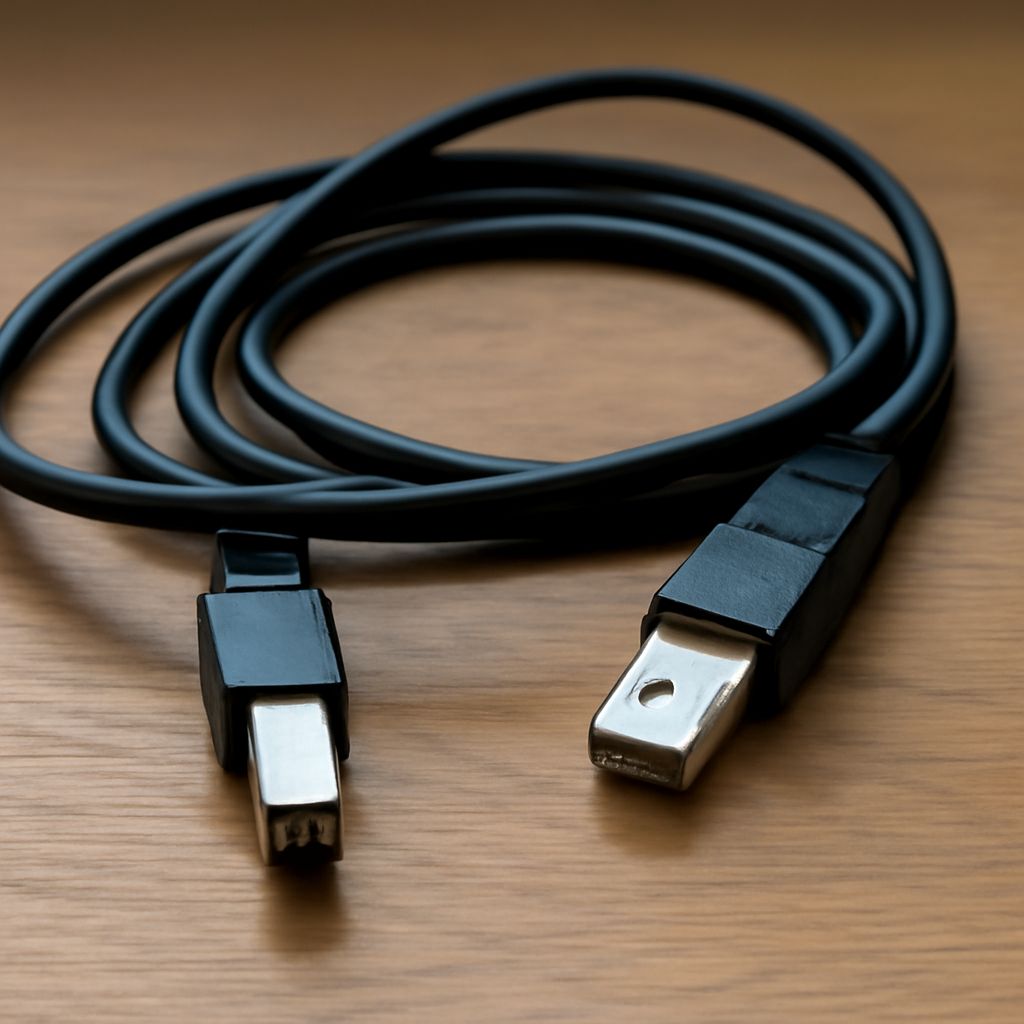
If your printer connects via USB, disconnect the cable from both ends, wait 10 seconds, and reconnect. Avoid using a USB hub—connect directly to a port on your computer. A damaged cable causes intermittent offline status that looks like a software problem; swap cables as a first diagnostic step if the printer goes offline repeatedly after reconnecting.
Network-Connected Printers
For wired Ethernet connections, check that the cable seats firmly in both the printer and the router or switch. A loose cable causes the printer’s network status to drop, triggering an offline notification on every computer that uses it. For Wi-Fi models, check whether the printer is still connected to the correct network—a router restart sometimes causes wireless printers to drop from the network without reconnecting automatically.
Step 2: Restart the Print Spooler Service
The Windows Print Spooler manages the queue between your computer and the printer. A stuck spooler causes the printer to appear offline even when the hardware connection is fine. To restart it: open the Run dialog (Win+R), type services.msc, find Print Spooler in the list, right-click it, and select Restart. Then right-click again and select Start if it wasn’t running. After restarting the spooler, try printing a test page from your printer’s settings.
Why Does a Printer Go Offline: The Most Common Causes
IP Address Changes
Routers assign IP addresses dynamically by default. When your router restarts, your printer may receive a new IP address that no longer matches the address stored in Windows or macOS printer settings. This is the single most common reason a wireless printer says it’s offline even though it’s powered on and connected to Wi-Fi. Fix it by assigning a static IP to the printer (in the router’s DHCP reservation settings) or by updating the port IP in your printer driver settings to match the new address.
Use Printer Offline Setting in Windows
Windows sometimes switches a printer to “Use Printer Offline” mode after a failed connection attempt. Open Devices and Printers in Control Panel, right-click your printer, and look for “Use Printer Offline” in the menu—if it has a checkmark, click it to uncheck and bring the printer back online. This setting persisting between sessions is a common explanation for why a printer keeps going offline on Windows 10 and 11.
Why Does My Wireless Printer Say Offline: Network-Specific Fixes
If your wireless printer keeps going offline, start by printing a network configuration page from the printer’s control panel and checking whether it shows a valid IP address. No IP address means the printer isn’t actually connected to Wi-Fi. Run the printer’s wireless setup wizard from the control panel to reconnect it to your network. Once connected, set a DHCP reservation in your router so the printer always gets the same IP—this single change eliminates 80% of recurring wireless printer offline problems.
Also check whether your router runs both 2.4 GHz and 5 GHz bands under the same network name. Many printers only connect to 2.4 GHz. If your phone auto-connects to 5 GHz during printer setup, the setup wizard may fail to find the printer on the right band. Use a 2.4 GHz-only device during setup to avoid this mismatch.
Next Steps
After resolving the immediate offline status, set a static IP or DHCP reservation for your printer in the router admin panel—this prevents the most common cause of printers going offline. Check monthly whether the printer’s firmware has an available update, as manufacturers frequently release fixes for connectivity stability. If the printer continues showing offline despite these steps, uninstall and reinstall the printer driver from the manufacturer’s website using the current version for your OS.