WiFi Calling Not Working: Fix Extender Issues and Essential Phone Apps
WiFi Calling Not Working: Fix Extender Issues and Essential Phone Apps
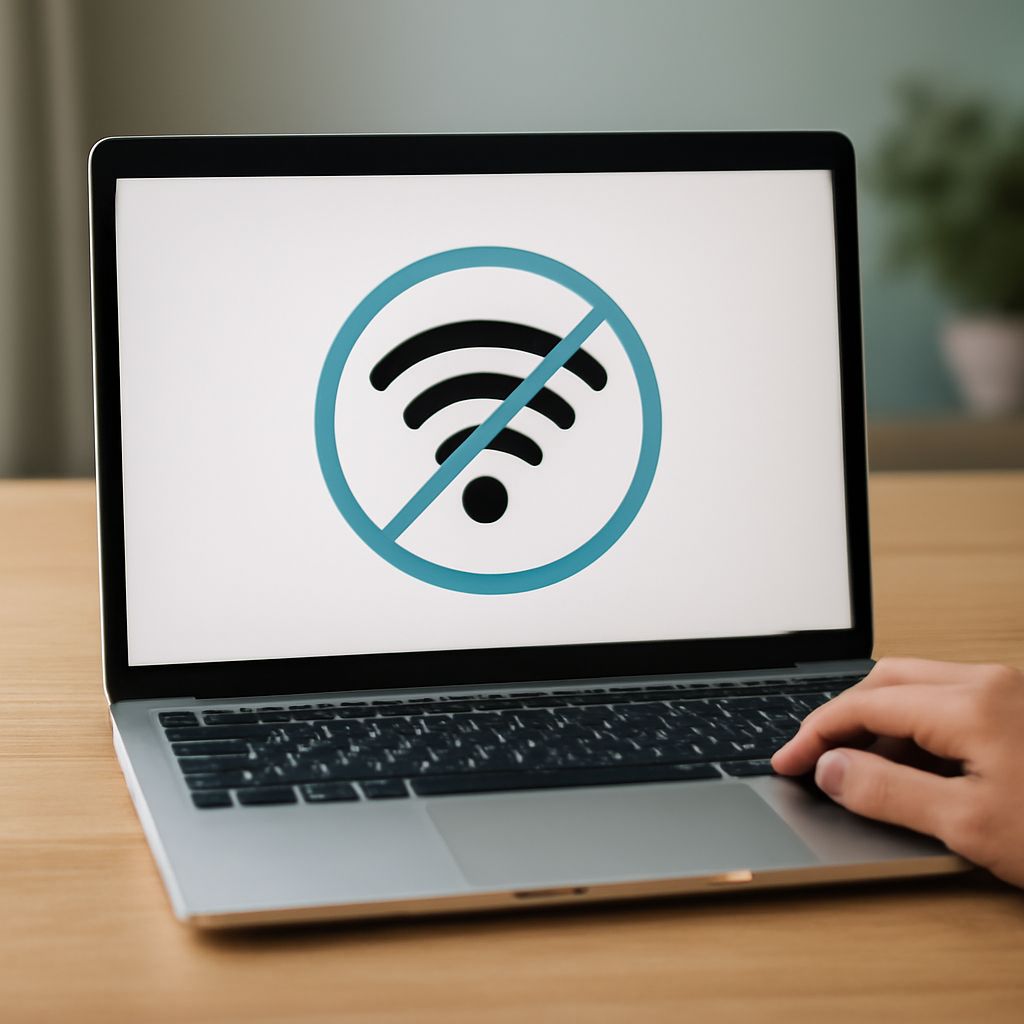
You enabled WiFi Calling because your cellular signal is weak at home, but wifi calling not working correctly is leaving you with dropped calls and frustrated. Or your wifi extender is connected but devices in the extended zone can’t use it properly. Sometimes iphone apps not working on the same network adds another layer to the problem. These issues share underlying causes and most can be resolved without calling your carrier.
Whether wifi calling not working is your main issue, your wifi extender not working is creating dead zones, or you’re trying to identify essential iphone apps that work reliably over WiFi, this guide covers the most common causes and fixes. Android phone app not working over WiFi is covered too, since many troubleshooting steps apply across platforms.
Why WiFi Calling Stops Working
WiFi Calling routes your calls and texts through your internet connection when cellular signal is weak. When it stops functioning, several things could be responsible:
Carrier Account Settings
WiFi Calling requires activation at the carrier account level, not just on the device. Even with the feature toggled on in your phone’s settings, calls won’t route over WiFi if the feature isn’t enabled on your account. Log into your carrier’s account portal and verify WiFi Calling is listed as active on your line.
VPN Interference
An active VPN on your phone frequently breaks WiFi Calling. Carriers route WiFi calls through their own servers using specific ports that VPNs often block or redirect. If you use a VPN app, disable it temporarily and test whether WiFi Calling works. If it does, configure your VPN to split-tunnel carrier traffic outside the VPN tunnel.
Router NAT and Port Restrictions
WiFi Calling uses IKEv2 over UDP port 4500 for most carriers. Routers with strict NAT or firewall settings sometimes block this traffic. If your router has a security mode labeled “High” or “Strict,” try setting it to “Medium” or “Moderate” to allow the carrier’s UDP traffic through.
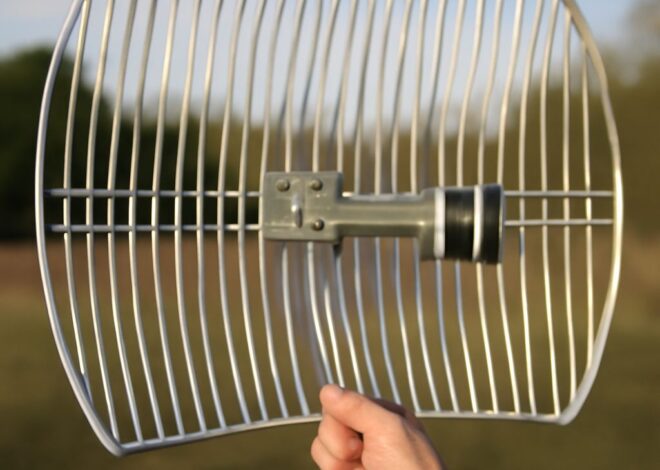
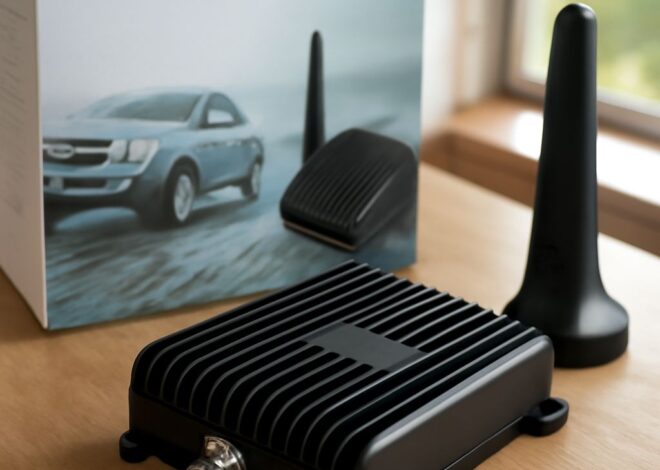
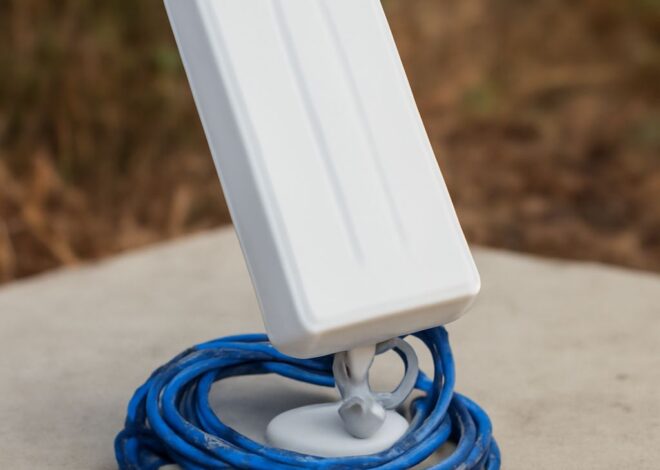
WiFi Extender Not Working: Common Causes and Fixes
A wifi extender not working properly usually means devices in the extended zone are connecting to it but getting slow speeds, frequent drops, or no internet access despite a connected status.
Placement Problems
An extender placed too far from the main router gets a weak signal to rebroadcast, which compounds the poor coverage it’s trying to fix. The extender needs to be within range of a strong signal from the main router, typically halfway between the router and the coverage dead zone. Check the signal strength indicator on the extender during setup.
Channel Congestion
Extenders that broadcast on the same channel as the main router create interference. Log into the extender’s admin interface and set it to a different non-overlapping channel. For 2.4GHz: channels 1, 6, or 11 don’t overlap. For 5GHz, most channels are non-overlapping.
IP Address Conflicts
Some extenders create a separate DHCP scope that conflicts with the main router’s IP range. If devices connected to the extender can’t reach the internet despite showing “connected,” check whether the extender is set to AP (access point) mode rather than repeater mode. AP mode lets the main router handle all DHCP assignments and avoids conflicts.
iPhone Apps Not Working Over WiFi
When iphone apps not working is the symptom, the problem is usually one of these:
- App-level network permission: Settings > Privacy & Security > Local Network shows which apps have permission to access your network. If an app is blocked here, it may fail to load data even with a working internet connection.
- DNS resolution failure: Try changing your DNS to Google (8.8.8.8) or Cloudflare (1.1.1.1) in your router settings. Some ISP DNS servers intermittently fail to resolve certain domains.
- Background App Refresh: Settings > General > Background App Refresh controls whether apps update in the background over WiFi. Some apps behave erratically when this is disabled.
Essential iPhone Apps for Poor Connectivity Situations
If your connection is unreliable, certain essential iphone apps handle degraded network conditions better than others:
- Signal or WhatsApp: More resilient on spotty connections than standard SMS apps
- Spotify or Apple Music (offline mode): Download content for offline playback before leaving a good connection
- Google Maps (offline maps): Download maps for your area to use without any connection
- Instapaper or Pocket: Save articles for offline reading when you have a connection and access them when you don’t
Android Phone App Not Working Over WiFi
Android phone app not working over WiFi often traces to battery optimization settings that restrict background data. Go to Settings > Battery > Battery Optimization (or App Battery Usage) and set the problematic app to “Unrestricted” or “Don’t optimize.” Android’s aggressive power management can prevent apps from maintaining network connections in the background.
Private DNS settings on Android can also cause issues. Settings > Network & Internet > Private DNS with a custom DNS provider occasionally conflicts with corporate or carrier networks. Try setting Private DNS to “Automatic” or “Off” to test whether this resolves the problem.
Next steps: For wifi calling not working, start with your carrier account settings before touching device configuration. For wifi extender not working, verify placement and check AP mode versus repeater mode. For both iPhone and Android app issues, network permissions and battery optimization settings are the first places to check before reinstalling anything.