Update Printer Driver: How to Use a Printer and Keep Drivers Current
Update Printer Driver: How to Use a Printer and Keep Drivers Current
Your printer stopped working after a Windows update, or print quality changed noticeably after an OS upgrade. Learning to update printer driver software is one of the most important maintenance steps for keeping your hardware functional. The driver is the software layer between Windows or macOS and the physical printer, and outdated or mismatched drivers cause everything from connection failures to missing print quality options.
Whether you need to know how to update printer driver manually or want Windows to handle it automatically, understanding the process also helps you know how to use a printer more effectively. The same steps for updating printer drivers apply to inkjet, laser, and thermal printer hardware across all major brands.
Why Printer Drivers Need Updating
Printer drivers translate your print job into a language the printer hardware understands. When Windows or macOS updates the printing subsystem, older drivers may lose functionality or stop communicating properly with the OS. The most common symptoms of an outdated or corrupted driver:
- Printer shows as offline despite being connected
- Print jobs send but nothing comes out
- Print options like duplex, paper size, or quality settings disappear from the print dialog
- Scanner function stops working on an all-in-one while printing still works
- Color profiles produce inaccurate output after an OS update
Updating printer drivers resolves most of these issues when the core hardware is functioning correctly.
How to Update Printer Driver on Windows
Method 1: Windows Update
Windows Update delivers many printer driver updates automatically through its standard update channel. Open Settings > Windows Update > Advanced options > Optional updates to check for printer driver updates that aren’t installed automatically. Selecting these and running the update installs the latest Microsoft-certified driver version.
Method 2: Device Manager
- Right-click the Start button and select Device Manager
- Expand the “Printers” section
- Right-click your printer and select “Update driver”
- Choose “Search automatically for drivers”
Windows searches Windows Update for available drivers and installs the newest version if found. This method is faster than manually downloading from the manufacturer site but may not find the absolute latest driver if the manufacturer hasn’t submitted it to Microsoft yet.
Method 3: Manufacturer Website
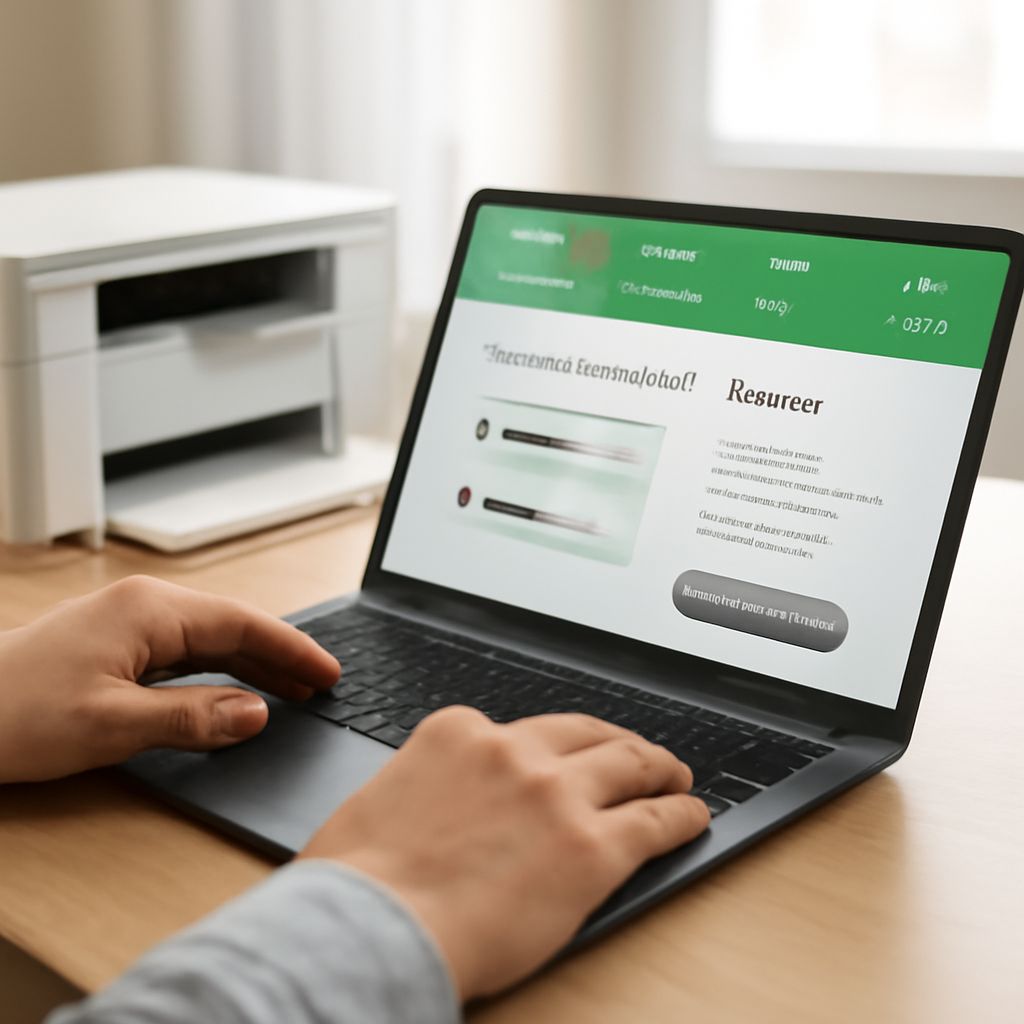
For the most current driver, go directly to the manufacturer’s support site. Navigate to your exact printer model’s support page and download the full driver package for your Windows version (10 or 11, 32-bit or 64-bit). Run the installer with administrator privileges and follow the setup wizard.
This is the most reliable method for updating printer drivers because manufacturer sites often have newer versions than Windows Update and include full-featured utility software.
How to Update Printer Driver on macOS
macOS handles most printer driver updates through System Settings rather than manual downloads:
- Open System Settings > Printers & Scanners
- Select your printer
- Click “Options & Supplies” to check the driver version
- If an update is available, a notification appears, or you can click “Software Update” in System Settings
Apple delivers AirPrint and manufacturer-submitted drivers through macOS software updates. For models not yet covered by Apple’s built-in drivers, download the Mac-specific driver package from the manufacturer’s support site and install it. After installation, remove the printer from System Settings and re-add it to force macOS to use the new driver.
How to Use a Printer After Driver Update
After updating printer drivers, the first print after installation confirms whether the update resolved the issue. Print a test page from Settings > Printers & Scanners > select printer > Print a test page. This bypasses any application-level issues and tests the driver and hardware connection directly.
If the printer still shows as offline after updating: toggle the printer off and on, disconnect and reconnect the USB cable or reconnect to WiFi, and check that “Use Printer Offline” isn’t checked in the printer’s context menu in the Print Queue window.
Keeping Drivers Current: Best Practices
For how to use printer hardware reliably over time, these habits minimize driver-related problems:
- Check for updates after major OS upgrades. Windows 11 feature updates and macOS major version upgrades frequently invalidate older drivers.
- Download from the manufacturer, not third-party driver sites. Sites offering “universal drivers” or “driver packs” often bundle unwanted software.
- Keep the printer’s firmware updated too. Firmware updates from the manufacturer’s site fix bugs in the printer’s internal software that driver updates alone can’t address.
Key takeaways: Updating printer drivers through Windows Update or the manufacturer’s support site resolves most connection and functionality issues. After updating, always print a test page to confirm the driver is working correctly. On macOS, removing and re-adding the printer after installing a new driver ensures macOS uses the updated version rather than the cached older one.