WiFi Repeater Setup: Reset, Bluetooth Repeater, and Smart Device Installation
WiFi Repeater Setup: Reset, Bluetooth Repeater, and Smart Device Installation
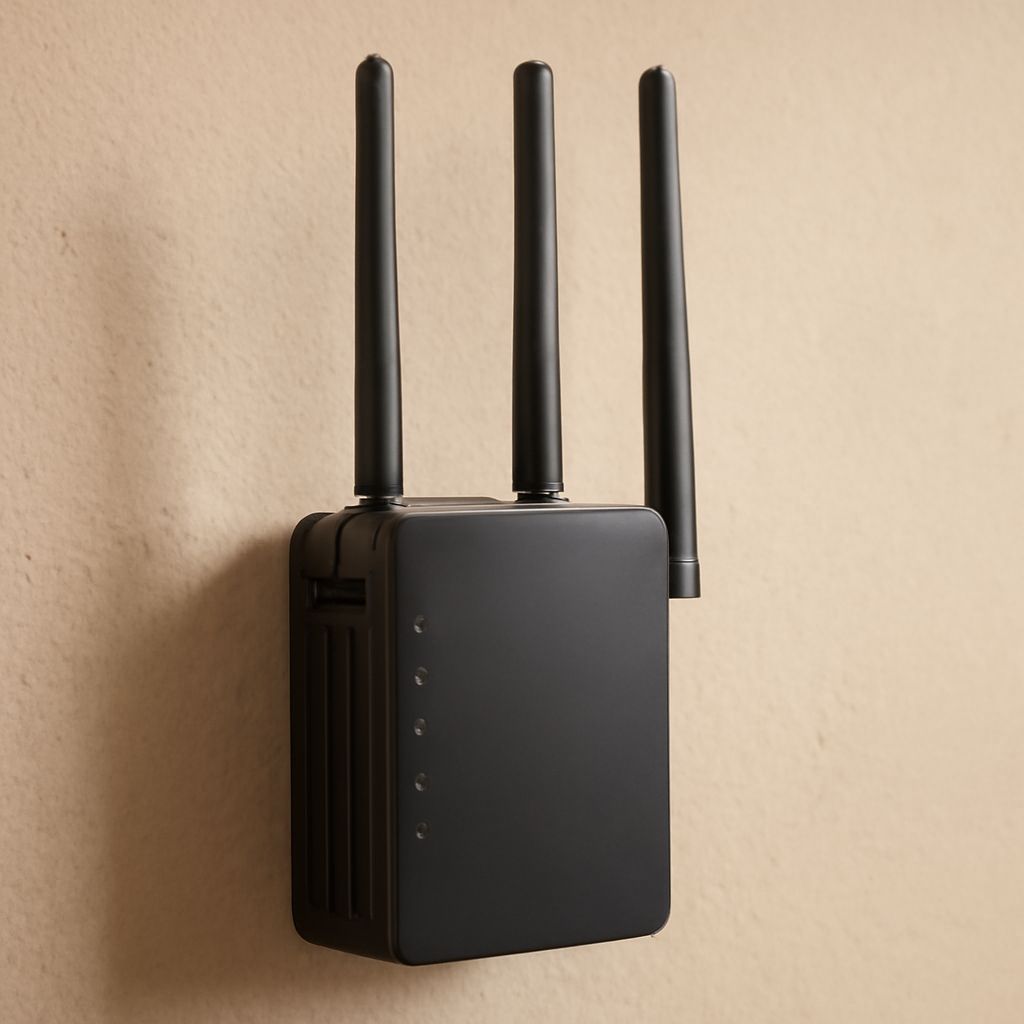
Your WiFi signal doesn’t reach the back bedroom, garage, or backyard. A WiFi repeater extends your existing network coverage by receiving the router’s signal and rebroadcasting it. Wifi repeater setup is straightforward on most modern devices, though knowing how to reset wifi repeater when something goes wrong saves frustration. If you’re exploring alternatives, a bluetooth repeater serves different applications, and knowing how to install wifi thermostat or how to install apk on android tv box connects to the broader theme of wireless device setup.
This guide covers wifi repeater setup step by step, explains when a bluetooth repeater makes more sense than a WiFi extender, and walks through the key points for smart device installation including WiFi thermostats and Android TV boxes.
WiFi Repeater Setup: Step-by-Step
A standard wifi repeater setup process follows these steps:
- Position the repeater: Place it halfway between your router and the dead zone, within range of a strong router signal (signal strength indicator on the repeater should show 2 or 3 bars before setup begins)
- Power on: Plug the repeater into a wall outlet and wait for the power light to become solid
- Connect a device to the repeater’s setup network: The repeater broadcasts a temporary setup SSID (usually the device name or brand). Connect your phone or laptop to this network
- Access the setup interface: Open a browser and navigate to the repeater’s default IP (often 192.168.10.1 or shown on the device label) or use the manufacturer’s app
- Select your home WiFi network: Choose your router’s SSID from the scan list and enter the password
- Configure the extended SSID: Either use the same SSID as your home network for seamless roaming, or create a separate name to distinguish which signal you’re connected to
- Save and reboot: The repeater restarts and joins your network
How to Reset WiFi Repeater When Setup Fails
When wifi repeater setup fails or the device behaves unexpectedly, a factory reset clears all configuration and returns it to default state. How to reset wifi repeater varies slightly by brand, but the process is almost always the same:
- With the repeater powered on, locate the reset button (usually a recessed pinhole on the back or bottom)
- Hold the reset button for 10 to 15 seconds using a paperclip or toothpick until the status lights flash or change pattern
- Release and wait 60 seconds for the repeater to restart
- The device broadcasts its default setup SSID again, ready for fresh configuration
Performing a reset before attempting a new wifi repeater setup is good practice if the device was previously configured for a different network.
Bluetooth Repeater: What It Is and When to Use One
A bluetooth repeater extends Bluetooth coverage beyond the standard 30 to 100 foot range. These devices receive a Bluetooth signal and retransmit it, allowing Bluetooth audio or data signals to reach further than a direct device-to-device connection supports.
Use cases for a bluetooth repeater include large retail environments with background music systems, outdoor event audio distribution, and industrial settings where sensors need to communicate over longer distances than standard Bluetooth allows. Consumer applications are less common because WiFi usually provides better performance for internet-connected devices.
How to Install WiFi Thermostat
For how to install wifi thermostat hardware, the general process applies to most brands (Nest, Ecobee, Honeywell, Wyze):
- Turn off HVAC system power at the breaker before touching any wires
- Remove the old thermostat and photograph the wiring before disconnecting anything
- Note wire colors and their terminal labels (R, C, W, Y, G are most common)
- Connect wires to the matching terminals on the new WiFi thermostat base plate
- Restore power and follow the thermostat’s setup app to connect it to your WiFi network
Many older homes lack a C-wire (common wire) that modern WiFi thermostats need for continuous power. Most manufacturers include an adapter or power kit that works around missing C-wires.
How to Install APK on Android TV Box
For how to install apk on android tv box to add apps not available in the built-in store:
- Enable unknown sources: Settings > Security > Unknown sources (toggle on)
- Install a file manager app from the app store if one isn’t pre-installed
- Download the APK file to a USB drive or directly to the TV box via a browser or Downloader app
- Open the file manager, navigate to the APK file, and tap it to install
- Confirm when prompted that you want to install from an unknown source
Pro tips recap: Place WiFi repeaters in strong signal zones, not deep in dead zones, for best performance. Always photograph thermostat wiring before disconnecting to avoid incorrect reinstallation. For APK sideloading on Android TV boxes, use a VPN after installation if accessing region-locked content to protect your privacy on shared networks.